


Windows App Development CLI v0.7.0 has shipped, and we’re excited to share it. Here are the highlights:
- Windows Sandbox execution: run, debug, and UI-automate your app inside a throwaway Windows Sandbox, never installing it on your host, plus a new
winapp targetfamily for driving the guest. - Native AOT: build and launch a Native AOT app with package identity in a single
winapp run. - One-step project packaging:
winapp packworks straight from a .NET project, with no separate build or publish step. - Single-file apps: run a single
.csfile with full package identity. winapp find-api: search the exact API surface a project references.- Reactor (MVU) templates: scaffold pure-C# WinUI apps with
winapp new(experimental). - Scoped and typed UI automation: more precise selectors, plus coordinated automation for agents driving apps concurrently.
- Standalone NuGet packages: use WinApp’s UI Automation engine and WinUI analyzer in your own projects.
Grab it with winget install Microsoft.WinAppCLI, or head to the repo for npm and other install options.
Here’s a tour of what’s new.
🏝️ Run and automate your app in Windows Sandbox
The new --on sandbox option runs your app inside a persistent Windows Sandbox instead of on your desktop. You build on your machine as usual, and WinApp deploys, registers, launches, and UI-automates the app inside the guest. The app is never installed on your host, and there is no silent host fallback: a command that asks for the Sandbox runs there or fails.
# Build on the host, then run and automate inside the Sandbox
winapp run . --on sandbox --detach
winapp ui inspect --on sandbox -a MyApp
winapp ui invoke SubmitButton --on sandbox -a MyApp
--detach returns after launch so the next command can inspect the app. The Sandbox stays running between commands and rebuilds, which keeps the inspect, act, and verify loop fast. Every winapp ui verb accepts --on sandbox, and app names, PIDs, window handles, and selectors are all resolved inside the guest.
WinApp also provisions what the guest needs to run your app. It reads the app’s package dependencies, Windows App SDK requirements, and *.runtimeconfig.json, then installs the missing supported runtimes in the guest, using your host caches where it can, rather than on your machine.
🎯 The new winapp target command family
Driving the guest involves more than launching an app, so v0.7.0 adds a winapp target command family for inspecting the Sandbox, moving files in and out, running setup commands, and capturing the whole guest desktop.
# Check guest readiness, deployments, and windows (no VM is started)
winapp target snapshot sandbox --json

# Run setup and diagnostics as the guest user
winapp target exec sandbox -- dotnet --info

# Copy files in and out (paths are relative to the guest work root)
winapp target push sandbox .\setup.ps1 Setup\setup.ps1
winapp target pull sandbox Results .\results

# Capture the whole native guest desktop, not just one app window
winapp target screenshot sandbox -o .\sandbox.png
winapp target record sandbox --duration-sec 20 --frames -o .\sandbox.mp4
Captures and recordings always land on the host, even when you omit -o, and target screenshots are unscaled so their pixel coordinates map directly to coordinate-input verbs like ui drag and ui touch --at. For agents driving the guest concurrently, set WINAPP_UI_WORKFLOW_ID to the same value across cooperating commands so they share a UI turn. See the Windows Sandbox execution guide for prerequisites, runtime provisioning, and the full workflow.
🚀 Publish Native AOT apps with package identity
winapp run can now build and launch a Native AOT app straight from your project. Set PublishAot in the project and pass --aot, and WinApp runs dotnet publish with your AOT configuration, then launches that output with package identity. There’s no separate publish step and no hunting for the folder, and it supports x64 and ARM64 projects.
# In the project file:
# <PropertyGroup><PublishAot>true</PublishAot></PropertyGroup>

winapp run . --aot
winapp run . --aot -c Release   # use -p PublishAot=true for a one-time override
🏗️ Package a .NET project in one step
winapp pack now works straight from a .NET project, with no separate build or publish step in between. Point it at a .csproj and it builds, packages, and (with --cert) signs in one step, mirroring run‘s project mode. No separate dotnet build and no locating the output folder.
# Build, package, and sign straight from a project
winapp pack .\MyApp.csproj -c Release --arch arm64 --cert .\devcert.pfx
📄 Run single-file .NET apps with package identity
.NET 10 lets you run a single .cs file with no project file. Point winapp run at it and WinApp builds the file, generates a manifest from its #:property directives, and launches it with package identity, so Package.Current, app notifications, ApplicationData, and on-device AI all work. Arguments pass through to your app just as dotnet run does.
// counter.cs: a single-file app, no .csproj
#:property OutputType=WinExe
#:property TargetFramework=net10.0-windows10.0.22621.0
#:property UseWinUI=true
#:property WinAppPackageName=com.contoso.counter
#:property WinAppDisplayName=Contoso Counter

// ... your app code ...
# Build the single file and launch it with package identity
winapp run counter.cs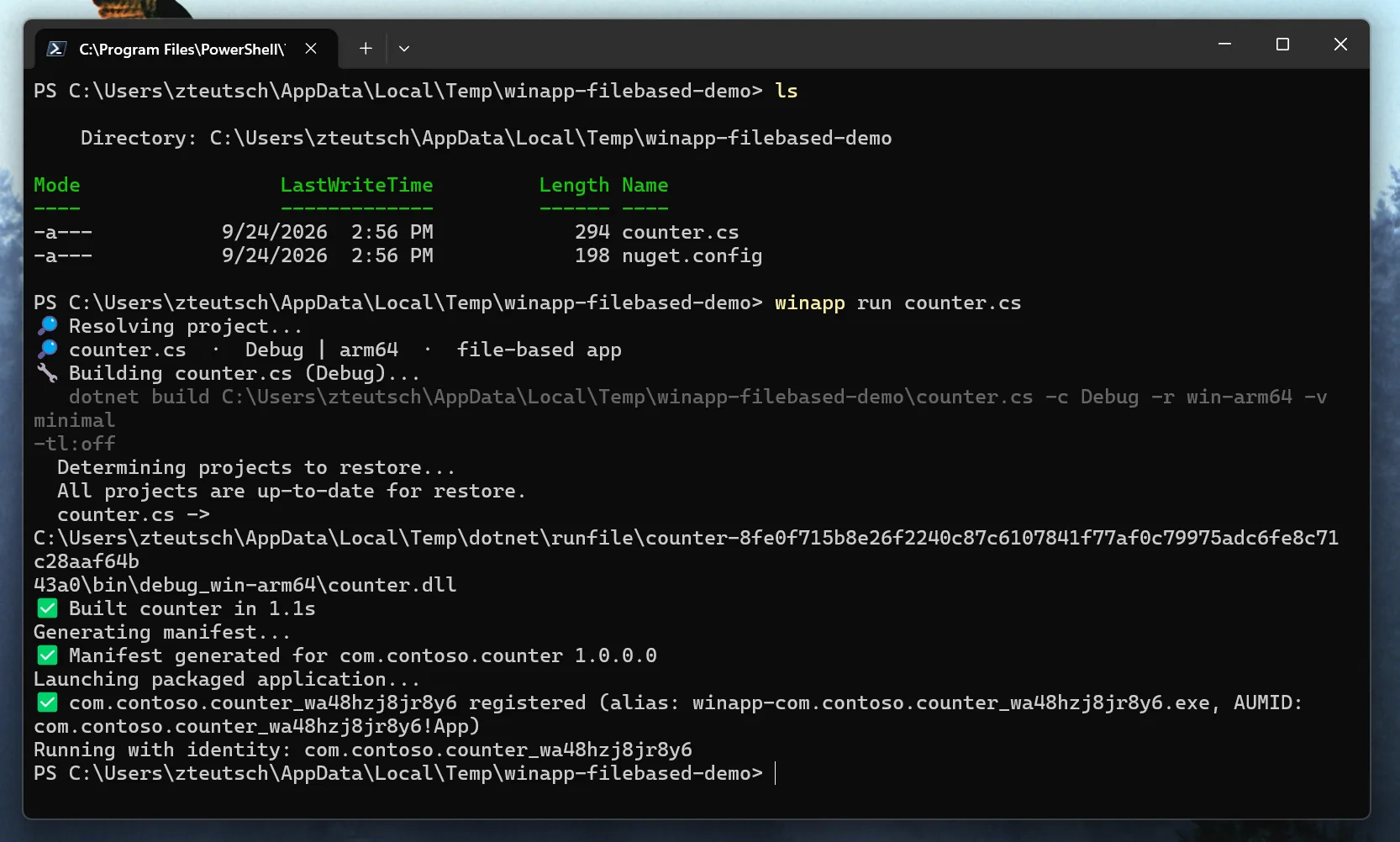
🔎 Search the API surface with winapp find-api
Where v0.6’s find-ui searches WinUI samples, the new winapp find-api searches the API surface: the types, members, and enums a project references. It builds a local index from your project’s restored NuGet and SDK packages, so answers reflect the API you can compile against rather than a model’s recollection of it. It’s built for AI coding agents, with --json output and non-zero exit codes on missing symbols, and it works just as well typed by hand.
# Search types and members by intent
winapp find-api "language model"

# List a type's properties, events, and methods
winapp find-api members Microsoft.UI.Xaml.Controls.NavigationView

# Verify specific properties exist before generating code
winapp find-api check-property InfoBar Severity IsOpen Message Title

# Explore the machine's Windows SDK before any project exists
winapp find-api "acrylic brush" --project sdk
The index is built on first use and refreshed automatically when the project is restored, so restore first with winapp restore or dotnet restore. From a directory with no project or solution, find-api answers from the machine-wide Windows SDK scope, so you can explore APIs offline before scaffolding anything. Negative answers are qualified when the index is incomplete, so an agent won’t treat “not indexed” as “does not exist.”
⚛️ Scaffold Reactor (MVU) apps with winapp new
winapp new can now scaffold Reactor templates. Where the existing XAML templates define the UI in markup with a C# code-behind, Reactor templates are pure C# with no XAML, using an MVU (Model-View-Update) pattern. The template list is read live from the installed pack, so run winapp new --list to see the current set.
# Blank Reactor app (pure C#, no XAML)
winapp new --name MyApp --template reactor

# Reactor app demonstrating the MVU pattern
winapp new --name MyApp --template reactor-mvu

# NavigationView and TabView starters are available too
winapp new --name MyApp --template reactor-navview
winapp new --name MyApp --template reactor-tabview
Reactor templates are experimental. They reference the prerelease Microsoft.UI.Reactor packages, whose APIs can change or be removed, and they require the .NET 10 SDK or newer. winapp new marks them (Experimental) in --list and the interactive picker, sets "Experimental": true in --json, and never chooses one as the default template. On an older SDK it fails up front with the version it needs rather than scaffolding a project you can’t build. To search Reactor sample code, pass --source reactor to find-ui.
🎯 Scoped and typed UI automation queries
The winapp ui engine can now target elements more precisely. Queries accept a scope and type filter, so you can search under a specific subtree, restrict to a control type, or match by class name instead of walking the whole tree. This makes the selectors that agents generate deterministic and repeatable.
# Scope a search to a subtree and a control type
winapp ui search "Welcome to MyApp" -a myapp --root MailRow --type Text --class-name TextBlock

# Read a typed property from a scoped element
winapp ui get-property Subject -a myapp --root MailRow --property Value
Alongside scoped, typed queries, this release adds a typed geometry context for element bounds, exposes whole-document TextPattern formatting through get-property, and makes explicit invoke actions run a specific action rather than guessing a control’s default. Because these live in the shared UI Automation engine, they apply whether you automate your local desktop or a Sandbox guest.
📦 Use the UI automation engine as a library on NuGet
The engine behind winapp ui now ships as standalone NuGet packages, so you can inspect and drive Windows apps from your own test and automation code without shelling out to the CLI. It works against any framework: WinUI 3, WPF, WinForms, and Win32.
Microsoft.Windows.SDK.BuildTools.WinApp.UIAutomation: the Windows UI Automation (UIA) engine that powerswinapp ui. It provides element-tree inspection, semantic selectors, UIA pattern interaction, input injection for keyboard, mouse, touch, and pen, and window capture.Microsoft.Windows.SDK.BuildTools.WinApp.UIAutomation.Recording: window and element video recording. It captures a window or element region at a fixed cadence and encodes it to H.264 MP4 through Media Foundation, with optional timestamped JPEG frame bundles. It’s split from the main package so projects that only inspect and drive UI don’t take a dependency on SkiaSharp.
🩺 Add the WinUI analyzer to your own build
The WinUI 3 Roslyn analyzer the CLI relies on is now available on its own as Microsoft.Windows.SDK.BuildTools.WinUIAnalyzer. Add the package to a project and it runs at build time, surfacing issues in your editor and in CI, whether or not you use the rest of WinApp.
It catches UWP-to-WinUI 3 API compatibility problems, data-driven migration suggestions, runtime and XAML layout pitfalls such as incorrect x:Bind usage, MVVM and Community Toolkit pattern regressions, and interop bugs across WebView2, COM, and AI. To keep false positives low, rules resolve symbols through the semantic model and verify the containing namespace before reporting, rather than matching on identifier names alone. No rule ships as an error by default, so it won’t unexpectedly break your build; you opt into build-breaking enforcement per rule through .editorconfig.
# Turn a specific rule into a build error
# .editorconfig
[*.cs]
dotnet_diagnostic.WUI0001.severity = error
⚡ Other notable changes
- Clearer install failures: a failed registration now explains
0x80073CF9in plain language instead of surfacing a bare HRESULT. - Agent Plugins 1.0: the WinApp plugin now conforms to the Agent Plugins 1.0 specification, with new contributor skills for code-quality pre-checks and the PR lifecycle.
- Consolidated security guidance: a new security guidance page collects developer-facing security guidance in one place, linked from the README.
🐛 Bug fixes
- Certificates:
cert installnow accepts a public.cer;cert generaterejects malformed and empty publisher distinguished names instead of silently falling back to your user name, and reports the public default password under--json. - Fixed composite
ui screenshotignoring--quiet, and corrected screenshot host-path reporting. - Fixed incomplete UI Automation descendant searches and empty UI values falling through to accessibility labels.
- Fixed incorrect
x:Bindanalyzer diagnostics and stopped shipping IntelliSense XML the CLI could not read.
🔒 Security & infrastructure
- Build tools are now verified to be Microsoft-signed before they run, and the build fails if any shipped binary is unsigned.
- Added a OneFuzz harness for the ZIP range extractor and fixed a bounds gap it found.
- Upgraded SkiaSharp and Svg.Skia past the libexpat CVE.
🖥️ Get started today
That’s v0.7.0: run and automate your app in an isolated Windows Sandbox, search the APIs a project references, work offline with real Gallery samples, publish Native AOT in one step, and build on WinApp’s own engines. It’s in public preview today, and we build these releases around the feedback we get. Tell us what’s working, and what isn’t, by filing issues on our GitHub repository, where you’ll also find the docs and guides.
Install via WinGet:
winget install microsoft.winappcliInstall via npm:
npm install --save-dev @microsoft/winappcliHappy building!


.NET Maui has its own CLI as well as Maui DevFlow and Sherpa. They are amazing tools.
Is this coming in some form in dotnet maui? Now from vs i can’t launch winui package apps from vscode
Hey there, was wondering if you could clarify what you were looking for.
The WinApp CLI supports Maui, you can check out the guide here.
As far as WinUI goes, if you want integration with VS Code, you’ll need the WinApp VS Code Extension. The README on that repo has instructions for getting set up.