


Last year we published AI Dev Gallery, an open-source app full of interactive Windows AI examples. A common follow-up question from Electron developers has been: “How can we build similar on-device AI experiences in our Electron apps?” In this blog, we’ll walk through how we built an Electron app filled with samples of on-device Windows AI, using the Windows App Development CLI and Windows AI projections for JavaScript. Along the way, you’ll see patterns you can reuse to build your own AI experiences in Electron.
Electron on Windows Gallery
We built an open-source sample app with concrete examples of how to integrate Windows AI into Electron. The app includes:
- On-device AI samples (text generation, summarization, captioning, OCR) using Windows AI APIs
- Native Windows integrations you can lift into your own project
- Guides for creating native addons, packaging/package identity, and Windows-specific project setup in Electron
Packaged builds of the app are available on GitHub Releases. You can also clone the repo and run the app yourself locally. Here’s a preview of the app running on a Copilot+ PC:
On-device AI samples
Electron on Windows Gallery includes AI samples for text generation, image captioning, text recognition, and more. These samples showcase local, on-device capabilities such as language understanding with Phi Silica and the Windows AI APIs. These interactive samples are designed to be a reference for how to add Windows AI capabilities into Electron apps.
Note: These samples are only available on Copilot+ PCs because they require the on-device Phi Silica model and the device’s Neural Processing Unit (NPU).
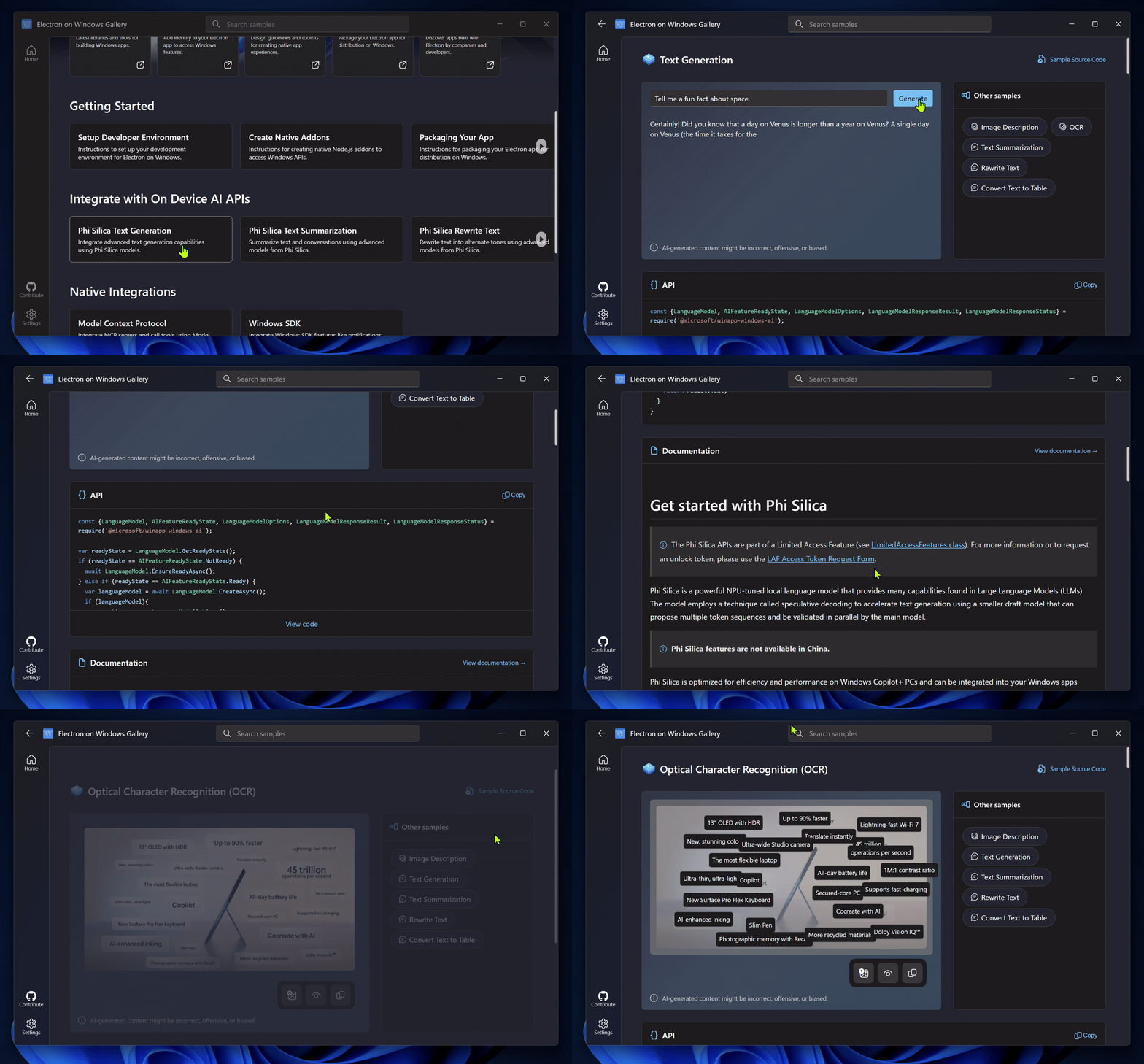
All generative AI experiences in Electron on Windows Gallery are powered by @microsoft/windows-ai-electron, a Node.js addon for Electron that lets apps call Windows AI APIs directly from JavaScript. With just a few lines of JavaScript, it lets you add on-device:
- Text generation
- Text summarization
- Text rewriting
- Text recognition
- Image description
You can do all of this without having to write or compile a single line of native code.
This package is currently experimental; we’re actively looking for feedback and usage to help shape our investment in this area. The full API reference for windows-ai-electron can be found at windows-ai-electron: API Reference.
How to Create a Windows AI Experience in Electron
Let’s take a deeper look at how we built the Windows AI samples in Electron on Windows Gallery.
Project Setup
First, we added windows-ai-electron to our Electron app:
npm i @microsoft/windows-ai-electron
windows-ai-electron relies on @microsoft/winappcli to initialize the project to call Windows APIs. We’ll cover more information on @microsoft/winappcli later in this post. To set up @microsoft/winappcli, we simply ran:
npm i @microsoft/winappcli -D
npx winapp init
When you run npx winapp init, it generates a winapp.yaml file for managing SDK versions. Make sure the version of the Microsoft.WindowsAppSDK package is 1.8.xxxxx. If it’s not, simply set the version to 1.8.251106002 and run npx winapp restore to ensure the proper dependencies are available for the project.
Finally, we needed to add the systemAIModels capability to our app to gain access to local Windows models. We added the following to our appxmanifest.xml:
<Capabilities>
  <rescap:Capability Name="systemAIModels" />
</Capabilities>
Call APIs from JavaScript
The windows-ai-electron package can now be used like any other Node.js package. Here’s some example code that checks if the AI model is available on a user’s machine:
const {
  LanguageModel,
  AIFeatureReadyResultState,
} = require("@microsoft/windows-ai-electron");

const modelReady = async () => {
  const readyResult = await LanguageModel.EnsureReadyAsync();
  if (readyResult.Status !== AIFeatureReadyResultState.Success) {
    console.log("AI not ready:", readyResult.ErrorDisplayText);
  } else {
    console.log("Model is ready");
  }
};

modelReady();
Note: LanguageModel.EnsureReadyAsync() will return a status of AIFeatureReadyResultState.Failure when the app is running on non-Windows platforms or on non-Copilot+ PC devices.
Build AI Experiences
From here, we were able to integrate our AI calls into our app however we’d like—whether that’s exposing it through a preload script to the renderer process, calling it from IPC handlers, or using it directly in the main process. Here’s a look at the Text Summarization sample we built with windows-ai-electron:
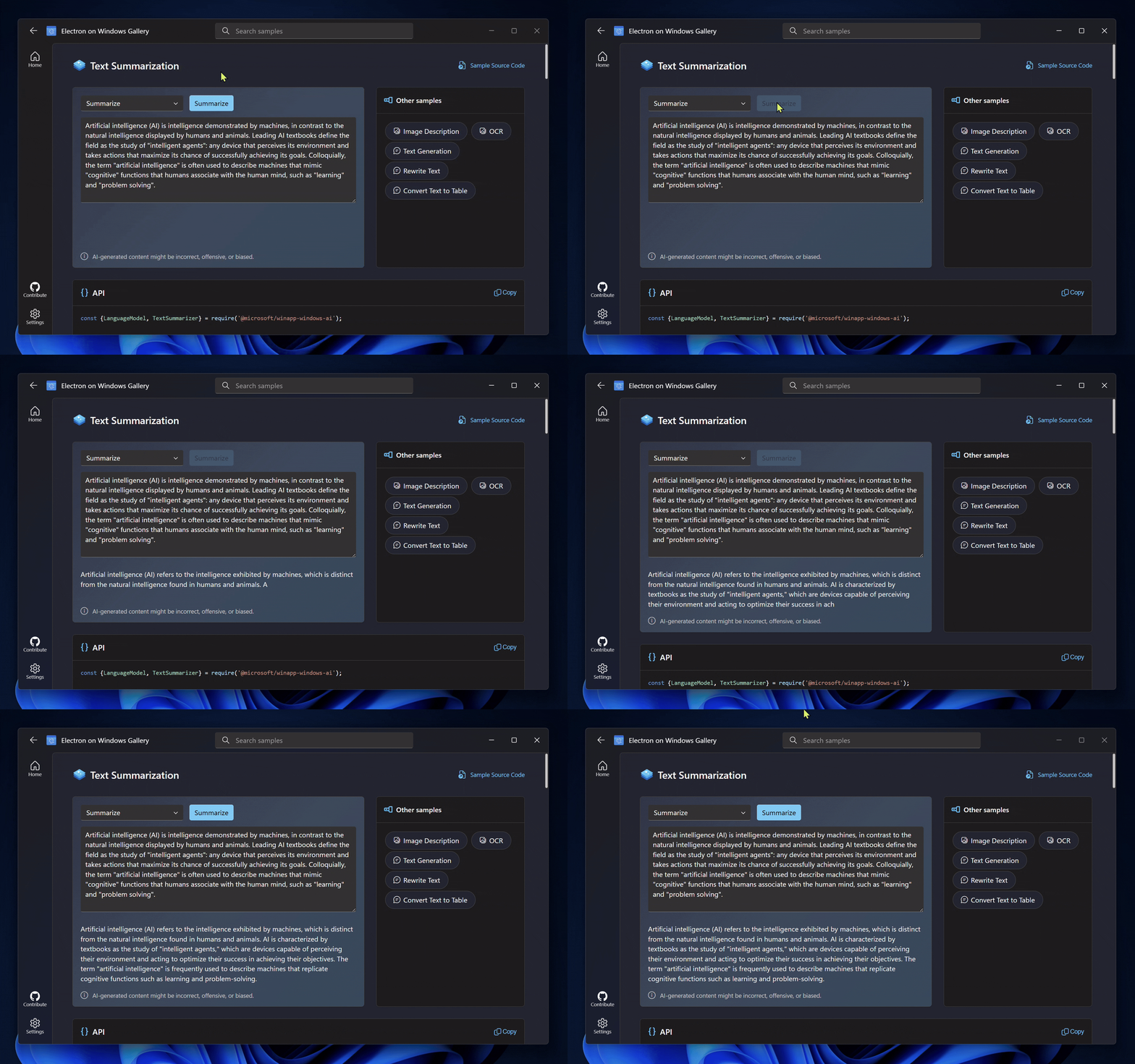
The windows-ai-electron package makes it simple for Electron apps to get started using Windows on-device AI. All the generative AI samples you see in Electron Gallery were built with just a few lines of JavaScript. For the full implementation details on the generative AI samples, see the Electron on Windows Gallery: Samples.
Leveraging Windows App SDK APIs in Electron
Beyond AI, many Electron apps also need access to Windows-native capabilities. To enable that kind of integration, Electron on Windows Gallery uses a tool called the Windows App Development CLI (winapp CLI). We mentioned winapp CLI earlier in this post when walking through how to setup windows-ai-electron. The winapp CLI provides a unified command-line experience for working with Windows App SDK, packaging, package identity, manifests, certificates, and build tools. For more information on winapp CLI, see the earlier post announcing the Windows App Development CLI.
With a couple of quick commands, our Electron on Windows Gallery app was bootstrapped with Windows dependencies and package identity so it could use Windows App SDK APIs. From there, winapp CLI’s native addon template can be used to generate a native addon project, implement Windows App SDK calls in native code, and expose a clean JavaScript API that the Electron app can call.
In Electron on Windows Gallery, we built a native addon with APIs for firing toast notifications, copying text to the clipboard, and more. Here’s a preview:
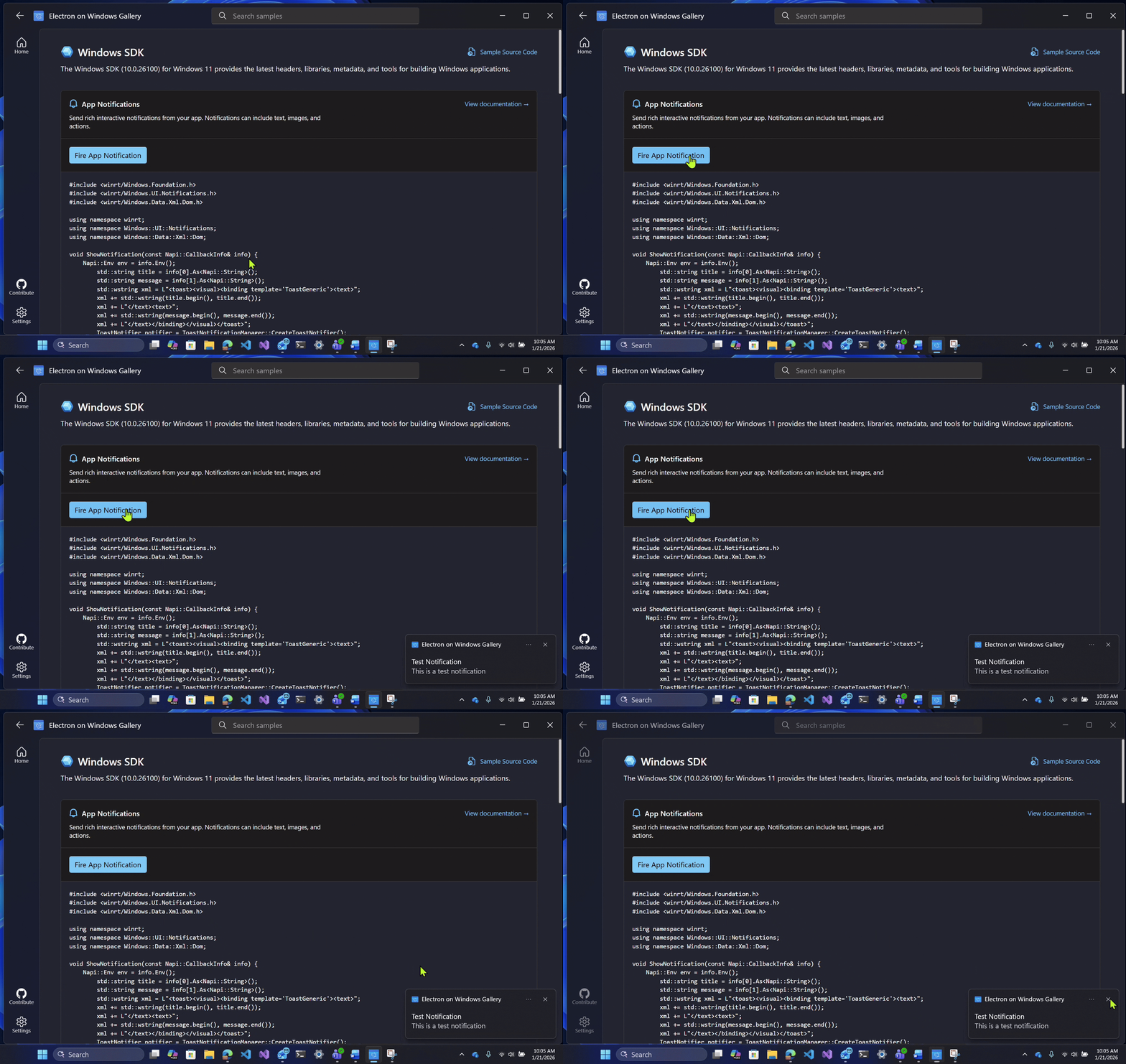
For the implementation details on the Windows SDK sample, see the Electron on Windows Gallery: Windows SDK Sample.
Hosting Windows MCP Servers in Electron
The gallery also includes an MCP (Model Context Protocol) sample. In this sample, Electron on Windows Gallery acts as an MCP host. It enumerates the MCP servers available on your machine, then lets you connect and run actions exposed by the selected server. This sample is a great starting point for developers who want to integrate MCP servers into an Electron experience on Windows.
Under the hood, the MCP sample uses the Windows On-Device Agent Registry command-line tool (odr.exe) to discover and manage the on-device agents available on the machine. For more information on MCP on Windows, visit MCP Host Quickstart.
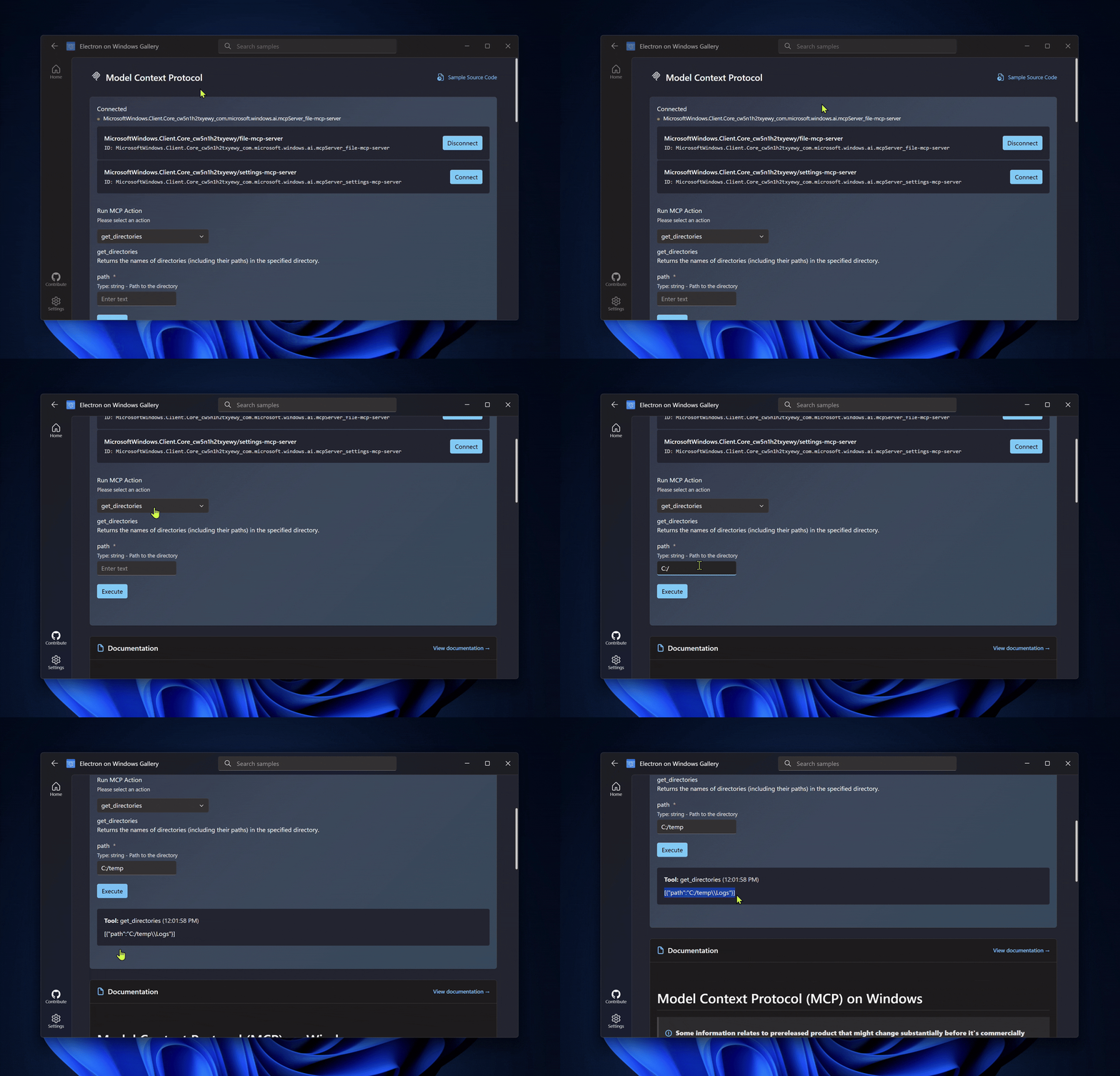
For the implementation details on the MCP sample, see the Electron on Windows Gallery: MCP Sample.
In-App Guides on Windows Development
Finally, Electron on Windows Gallery also contains several in-app guides designed to help developers get the most out of building Electron applications on Windows. These guides cover essential topics like:
- Setting up your developer environment for Electron on Windows
- Creating a native addon to enable deeper integration with native Windows features
- Adding package identity to your application
- Packaging your app for distribution on Windows
Final Thoughts
The samples and guides in Electron on Windows Gallery are meant to be a toolbox: patterns that developers can copy to build their own Electron AI experiences on Windows. If there are additional AI scenarios or samples that would be useful, please let us know by filing feedback. Your requests help shape what we build next.
Resources and feedback
Electron on Windows Gallery
- Electron on Windows Gallery repo: microsoft/electron-on-windows-gallery
- Download the app: GitHub Releases
- File bugs / request samples: GitHub Issues
@microsoft/windows-ai-electron
- Getting started: Getting Started Guide
- Install @microsoft/windows-ai-electron: @microsoft/windows-ai-electron on npm
- @microsoft/windows-ai-electron repo: microsoft/windows-ai-electron
- File bugs / feedback requests: GitHub Issues
Related platform docs and tooling
- AI Dev Gallery: microsoft/ai-dev-gallery
- Windows App Development CLI: microsoft/winappCli
- Windows AI APIs documentation: “What are Windows AI APIs?” on Microsoft Learn
- Windows Design Guidance: Design Windows apps overview
We’re excited to see what you build using Electron on Windows Gallery and @microsoft/windows-ai-electron. Happy coding!



0 comments
Be the first to start the discussion.