


We covered the roles your Azure Cosmos DB app needs in our previous post. Now let’s look at what happens after you’ve assigned those roles, switched identities, disabled keys and suddenly staring at a 403. As we continue this security series, we’ll walk through the most common causes, how to diagnose them, and how to get back to green quickly.
The situation
You did everything right. You gave your app a managed identity, assigned a data role, switched your code over to DefaultAzureCredential, and turned off key-based auth like all the good security guidance told you to. Then you deploy, and every single call comes back with this:
Response status code does not indicate success: 403 (Forbidden).
Don’t panic. I’ve watched a lot of people hit this exact wall, and it’s almost always one of a few things. None of them take long to fix once you know where to look. Let me walk you through them roughly in the order they tend to bite.
First, read the error the right way
Here’s the thing that saves you the most time: during an RBAC migration, a 403 usually means authentication succeeded. Cosmos DB recognized the identity making the request. The problem is that the identity wasn’t authorized to perform the operation.
That changes where you go looking. You’re not chasing a bad credential or broken managed identity. You’re looking for a missing role assignment, the wrong principal, an incorrect scope, or another authorization issue.
Before assuming RBAC is the problem, read the full error message and substatus. Cosmos DB can also return 403 errors for network restrictions and other configuration issues, and the details usually tell you where to investigate next.
The five usual suspects
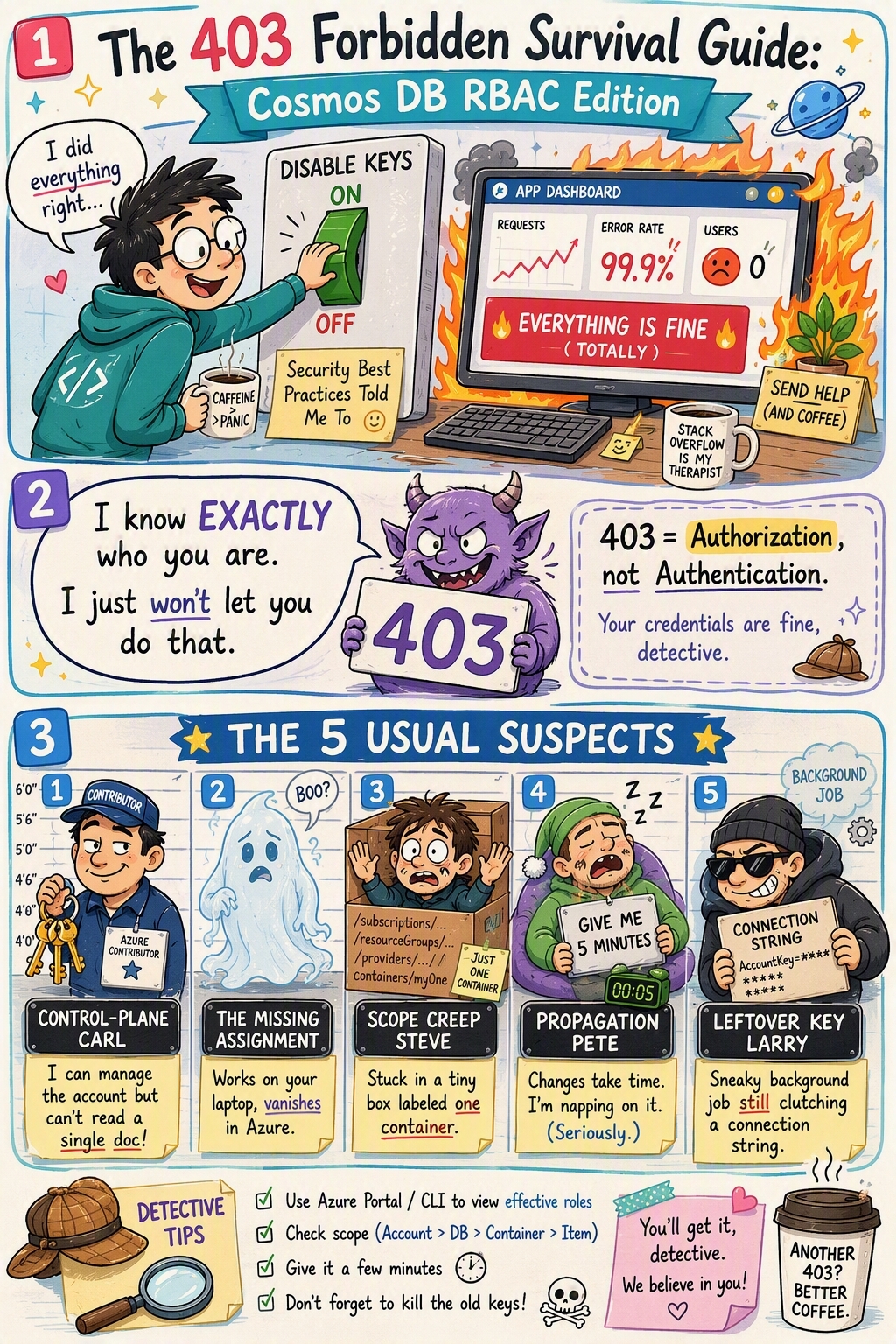
1. You assigned a control plane role and expected data access
This is the one I see most. It comes down to a split that catches almost everyone: control plane and data plane are two different systems.
Giving the app an Azure management role such as Contributor allows it to manage the Cosmos DB account itself, including tasks like configuring the account, managing networking settings, and retrieving account keys. What it does not do is grant data-plane access to read, write, or query items. Data access required a separate Azure Cosmos DB data-plane role assignment.
Start by listing the role assignments on the data plane:
az cosmosdb sql role assignment list \
--account-name "$ACCOUNT" \
--resource-group "$RESOURCE_GROUP"
If your app’s principalId isn’t in that list, there’s your answer. You assigned the wrong kind of role. Create a data plane role assignment using the az cosmosdb sql role assignment create command.
2. There is no data role assignment at all
Sometimes the assignment was never created, or it landed on a different principal than you thought. The classic version of this: you granted the role to your own dev identity but never to the app’s managed identity. So, it works perfectly on your laptop and falls over the moment it runs in Azure. (Or the other way around, which is somehow more annoying.)
Confirm the exact principalId your app actually runs as, then check whether that ID has an assignment.
# The managed identity your app uses
az webapp identity show \
--name my-app \
--resource-group "$RESOURCE_GROUP" \
--query principalId -o tsv
Match that against the list from suspect #1. If it’s missing, that’s the fix: create the assignment for the right principal.
3. The scope is too narrow
Every assignment is tied to a scope. If you scoped it to one container and your app then reaches for a different database or container, you’ll get a 403 on exactly the path you didn’t grant. The role is real, it just doesn’t reach far enough.
Look at the scope on your assignment. If it points at a specific database or container and your app touches more than that, widen it. When you’re just getting an app working, scope to the account (/) and tighten it down later once everything is green.
4. The role assignment is still propagating (give it a minute)
This one is easy to misdiagnose because a newly created role assignment may not take effect immediately. If the 403 started immediately after you created or changed the assignment, allow time for the change to propagate, then retry before changing your code or permissions.
5. DisableLocalAuth is on and your code still uses a key
The moment you set disableLocalAuth: true, Cosmos DB stops accepting keys and connection strings, full stop. Every request has to go through Entra ID. So if any corner of your app still builds the client with a key, a background job, a health check, some old config value you forgot about, that one path will 403 while everything else works fine.
Go search your code and config for connection strings and AccountKey. Every client needs to be built with a TokenCredential, not a key.
// This will 403 once local auth is disabled
var client = new CosmosClient(connectionString);

// This is what you want
var client = new CosmosClient(accountEndpoint: "https://my-cosmos-account.documents.azure.com:443/",tokenCredential: new DefaultAzureCredential());
A fast diagnostic order
Next time a 403 lands, just work down this list. It’s roughly sorted by how often each one turns out to be the answer:
- Do you have a data plane role assignment, not just an Azure RBAC one?
- Is it on the exact principal your app runs as?
- Does the scope cover everything your app actually touches?
- Is the assignment brand new? Wait a couple minutes and retry before assuming it’s broken.
- Is any code path still using a key or connection string?
Most of the time you never make it past step one or two.
How to recover with confidence
If you want to avoid the 403 cliff altogether, the trick is to not flip every switch at once. Get RBAC fully working while keys are still enabled, and only then turn keys off:
- Assign the data plane role to your app’s identity.
- Switch your code to
DefaultAzureCredentialand deploy. - Confirm the app reads and writes data with the identity, keys still on.
- Now set
disableLocalAuth: true.
If something breaks at step 4, you already know the identity path was working seconds ago, so you can go straight to suspect #5, a leftover key, instead of second-guessing your whole role setup. That one bit of ordering turns a baffling failure into an obvious one.
Wrapping up
Passwordless auth on Cosmos DB feels intimidating the first time a 403 stares back at you, but the failure modes are few and every one of them is fixable in minutes. Once you internalize that authentication and authorization are separate problems, and that control plane and data plane are separate systems, the error stops being a mystery and starts being a checklist.
Your turn:
- Pick one app still running on keys or connection strings and move it to
DefaultAzureCredentialthis week. Start in a non-production environment. - Keep keys enabled until the identity path is proven, then set
disableLocalAuth: trueto close the door for good. - Hit a 403 you can’t crack? Walk the fast diagnostic order above, then drop your scenario in the comments and I’ll help you dig in.
If this series saved you a debugging session, share it with the teammate who owns your Cosmos DB account. Future-them will thank you.


I faced the same issue 1 1/2 year ago: it was related to Microsoft.DocumentDB/databaseAccounts/readMetadata that is required.
It doesn’t seem that this rôle is easy to configured even when it is supposed to be provided by other rôles.