

Strengthen Identity Security and Eliminate Account Keys
Identity is becoming the new security perimeter. As organizations modernize their cloud applications, long‑lived secrets and shared keys introduce unnecessary risk. Azure Cosmos DB now fully supports Microsoft Entra ID for both control plane and data plane access, giving customers a secure, passwordless, least‑privilege alternative to legacy key‑based authentication.
This blog walks through why customers are moving to Entra ID, what changes when you disable local authentication, and how to configure modern RBAC for Cosmos DB.
Why Move to Microsoft Entra ID?
Organizations are accelerating their shift toward identity‑driven security to address:
- Key leakage and secret sprawl across distributed applications
- Zero Trust mandates requiring continuous verification and least‑privilege access
- Compliance obligations (SOC 2, ISO, FedRAMP) that discourage unmanaged secrets
- Operational challenges tracking who has access and why
- Microsoft Entra ID addresses these needs with a secure, auditable, modern access model
Key Benefits of Enabling Entra ID of Azure Cosmos DB
Eliminates account keys
Account keys grant full, unrestricted access to all databases, containers, and items. If leaked, they create immediate high‑severity exposure. Disabling local authentication removes these long‑lived primary and secondary keys. All access flows through Microsoft Entra ID, significantly reducing the attack surface
Fine‑grained, least‑privilege data‑plane roles
Cosmos DB’s native data plane RBAC delivers precise, operations-scoped permissions so every identity gets only the actions it truly needs, nothing more. By eliminating broad, all‑powerful keys and replacing them with tightly bounded, auditable role assignments, it dramatically reduces lateral movement risk and enforces clear, least‑privilege access boundaries aligned with Zero Trust.
Zero Trust Controls and governance with Azure RBAC
Once local auth is disabled, all access must flow through Azure RBAC or Cosmos DB’s native data‑plane RBAC roles. This ensures every user, app, or managed identity has explicit permissions rather than “god‑mode” keys.
Clear separation of duties
Instead of everyone sharing account keys, teams get purpose‑built roles:
- Operators manage account‑level settings
- Developers build apps with scoped data access
- Security teams audit activity through Azure Monitor and Entra ID logs
How to Get Started
Step 1 — Disable Local Authentication
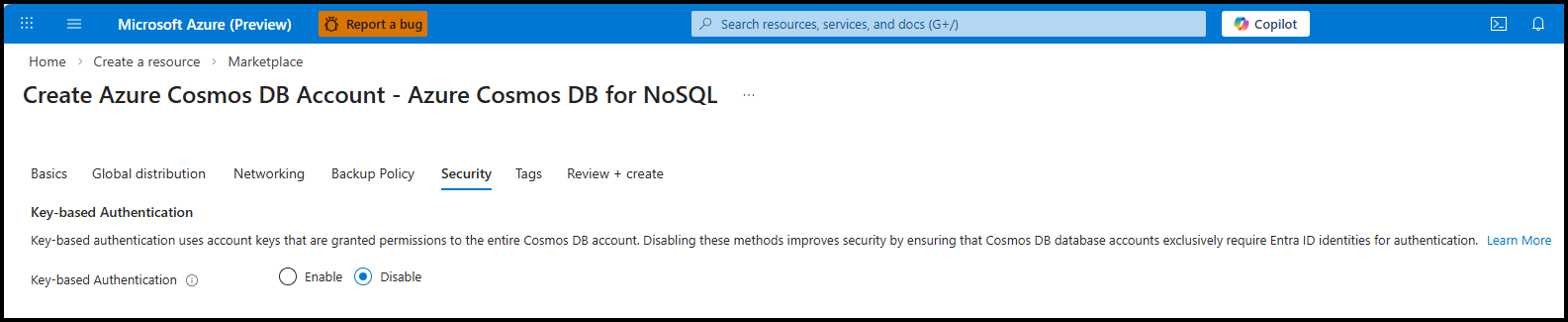
Disabling key‑based authentication forces all callers to authenticate using Entra ID. You can do this for new accounts or existing accounts.
For a New Cosmos DB Account (Azure Portal)
- Go to Create Azure Cosmos DB Account.
- Navigate to the Security tab.
- Under Key-based authentication, select Disable.
- Complete the remaining steps and deploy.
For an Existing Cosmos DB Account (Azure CLI)
az resource update --resource-group "<name-of-existing-resource-group>" --name "<name-of-existing-account>" --resource-type "Microsoft.DocumentDB/databaseAccounts" --set properties.disableLocalAuth=trueStep 2 — Configure Control Plane RBAC
Control plane roles govern management operations such as creating databases or adjusting account‑level settings. These apply to ARM operations, not data access. Common built-in roles include:
- Cosmos DB Operator
- Cosmos DB Account Reader
- DocumentDB Account Contributor
Assign a Built-in Role (Azure Portal)
- Navigate to Access control (IAM)
- Click on Add > Add role assignment
- In the search bar, type in Cosmos DB Operator, select and choose Next.
- Click Select members and search for the user to assign the role.
- Lastly, Review + assign.
Assign a Built-in Role (Azure CLI)
Built-in role can also be assigned using Azure CLI
az role assignment create --assignee <principal-id-or-upn> --role "Cosmos DB Operator" --scope /subscriptions/<sub-id>/resourceGroups/<rg>/providers/Microsoft.DocumentDB/databaseAccounts/<account>Step 3 — Configure Native Data Plane RBAC
Data plane RBAC determines who can read, write, or delete items within a database or container.
Built‑in data plane roles include:
- Cosmos DB Built-in Data Reader (id – 00000000-0000-0000-0000-000000000001)
- Cosmos DB Built-in Data Contributor (id – 00000000-0000-0000-0000-000000000002)
a. Assign a Built-in data plane role (Azure CLI)
Use the role definition id of the built‑in role to create the appropriate role assignment, Cosmos DB Built-in Data Contributor role in this example.
az cosmosdb sql role assignment create --resource-group “<rg>” --account-name “<accountname>” --role-definition-id “00000000-0000-0000-0000-000000000002” --principal-id “<principal-id>” --scope /subscriptions/<sub-id>/resourceGroups/<rg>/providers/Microsoft.DocumentDB/databaseAccounts/<account>b. List All Role Assignments (Optional)
Run this to confirm/validate role assignments.
az cosmosdb sql role assignment list --resource-group “<rg>” --account-name “<accountname>”Conclusion
Moving to Microsoft Entra ID is one of the most impactful steps you can take to strengthen Azure Cosmos DB security. By eliminating account keys and adopting modern RBAC for both the control and data plane, you reduce risk, improve auditability, and align with Zero Trust best practices. Identity‑driven access is the new default. With these capabilities, Cosmos DB gives customers a cleaner, more secure foundation for cloud‑native applications.
References
- Connect to Azure Cosmos DB for NoSQL using role-based access control and Microsoft Entra ID
- Azure permissions for Databases: Microsoft.DocumentDB
- Azure Cosmos DB for NoSQL data plane security reference: Built-in actions
About Azure Cosmos DB
Azure Cosmos DB is a fully managed and serverless NoSQL and vector database for modern app development, including AI applications. With its SLA-backed speed and availability as well as instant dynamic scalability, it is ideal for real-time NoSQL and MongoDB applications that require high performance and distributed computing over massive volumes of NoSQL and vector data.
To stay in the loop on Azure Cosmos DB updates, follow us on X, YouTube, and LinkedIn.


Hello, we would like to ask you about RBAC at control plane permissions. We have SQL for CosmosDB with AlwaysEncrypted setup, but we can’t fully transfer to RBAC due to AlwaysEncrypted key management (as testing results show) can only be done via access key.
Please, advice us if we can try something else to find a workaround.
Here is our github issue: https://github.com/Azure/azure-cosmos-dotnet-v3/issues/5546
Thank you