


The Azure Cosmos DB Linux-based vNext emulator (preview) is a local version of the Azure Cosmos DB service that runs as a Docker container on Linux, macOS, and Windows. It provides a cost-effective way to develop and test applications locally without requiring an Azure subscription or network connectivity.
The latest release brings improvements in two key areas:
- Enhanced Query engine: Addresses limitations in JOINs, operators, subdocument handling, and more.
- Observability: OpenTelemetry support to collect and correlate metrics, logs, and traces for deeper insight into applications.
Query Improvements
This emulator release enables several query patterns that were previously unsupported. In this post, we’ll focus on the following enhancements to query capabilities:
- Improved JOIN Operations – Support for nested JOINs across multiple array levels, cross-product JOINs, and self-JOINs on primitive arrays
- Enhanced Operator Support – Support for string manipulation functions (
CONCAT,LENGTH) and array operations (ARRAY_LENGTH, direct array indexing) - Better Subdocument Handling – Improved querying of deeply nested object properties and proper handling of missing properties
Let’s explore these with practical examples.
Improved JOINs
In Azure Cosmos DB, JOINs enable you to flatten and traverse data within documents, allowing you to work with nested and hierarchical data structures.
Let’s explore this using a sample family dataset where each document represents a family with nested arrays. This includes three families (Andersen, Wakefield, and Miller) with varying numbers of children and pets, demonstrating how JOINs handle different data structures. Notice the hierarchical nesting: each family has a children array, each child has a pets array, and families also have a separate tags array.
[
    {
        "id": "AndersenFamily",
        "lastName": "Andersen",
        "parents": [
            {"firstName": "Thomas", "relationship": "father"},
            {"firstName": "Mary Kay", "relationship": "mother"}
        ],
        "children": [
            {
                "firstName": "Henriette",
                "grade": 5,
                "pets": [{"name": "Fluffy", "type": "Rabbit"}]
            }
        ],
        "tags": ["seattle", "active", "family-friendly"],
        "address": {"state": "WA", "city": "Seattle"}
    },
    {
        "id": "WakefieldFamily",
        "lastName": "Wakefield",
        "parents": [
            {"firstName": "Robin", "relationship": "mother"},
            {"firstName": "Ben", "relationship": "father"}
        ],
        "children": [
            {
                "firstName": "Jesse",
                "grade": 8,
                "pets": [
                    {"name": "Goofy", "type": "Dog"},
                    {"name": "Shadow", "type": "Horse"}
                ]
            },
            {"firstName": "Lisa", "grade": 1, "pets": []}
        ],
        "tags": ["newyork", "urban"],
        "address": {"state": "NY", "city": "New York"}
    },
    {
        "id": "MillerFamily",
        "lastName": "Miller",
        "parents": [{"firstName": "David", "relationship": "father"}],
        "children": [
            {
                "firstName": "Emma",
                "grade": 6,
                "pets": [{"name": "Whiskers", "type": "Cat"}]
            }
        ],
        "tags": ["boston", "academic"],
        "address": {"state": "MA", "city": "Boston"}
    }
]
Basic JOIN – Flattening Arrays
For example, if you need to generate a list of all children across multiple families for a school roster or activity planning, use the JOIN operator to flatten the children array, creating one result row per child across all family documents.
SELECT f.id, f.lastName, c.firstName, c.grade
FROM f
JOIN c IN f.children
This returns one row per child (giving you a flattened view of all children with their family information) – Henriette from the Andersen family, Jesse and Lisa from the Wakefield family, and Emma from the Miller family.
JOIN with Filter
To find children within specific grade ranges, add a WHERE clause to JOIN. This lets you filter results based on properties of the array elements, like selecting only middle school students (grade 6 and above).
SELECT f.id, f.lastName, c.firstName, c.grade

FROM f

JOIN c IN f.children

WHERE c.grade >= 6
The result set includes only Jesse (grade 8) and Emma (grade 6), automatically excluding Henriette and Lisa who are in lower grades.
Nested JOIN – Traversing Hierarchical Data
If you need to traverse multiple levels of your data structure to identify all pets and their owners, use chained JOINs to drill down through nested arrays, moving from families to children to pets in a single query.
SELECT f.id, c.firstName AS child, p.name AS pet, p.type

FROM f

JOIN c IN f.children

JOIN p IN c.pets
You’ll see each pet listed with its owner and family: Henriette’s rabbit Fluffy, Jesse’s dog Goofy and horse Shadow, and Emma’s cat Whiskers. Notice that Lisa doesn’t appear in the results since her pets array is empty, demonstrating the INNER JOIN behavior.
Cross Product JOIN – Combining Independent Arrays
To associate every child with all of their family’s characteristics or tags to understand patterns and preferences, join two arrays from the same document to create a cross product pairing each child with each family tag.
SELECT f.id, c.firstName AS child, t AS tag

FROM f

JOIN c IN f.children

JOIN t IN f.tags
This creates every possible child-tag pairing within each family: Henriette appears three times (paired with “seattle”, “active”, and “family-friendly”), Jesse and Lisa each appear twice (with “newyork” and “urban”), and Emma appears twice (with “boston” and “academic”).
JOIN on Primitive Arrays
Analyzing common characteristics across your entire dataset requires flattening simple value arrays. JOINs work on arrays of primitive values like strings or numbers, in addition to complex objects.
SELECT f.id, f.lastName, t AS tag

FROM f

JOIN t IN f.tags
Each tag becomes its own row associated with its family: the Andersen family contributes three tags (“seattle”, “active”, “family-friendly”), while Wakefield and Miller each contribute two tags.
Self-JOIN – Finding Combinations
Analyzing which characteristics tend to appear together in your data (such as discovering that families tagged “urban” are also often tagged “active”) requires finding unique pairs within the same array. You achieve this by joining an array with itself using different aliases.
SELECT f.id, t1 AS tag1, t2 AS tag2

FROM f

JOIN t1 IN f.tags

JOIN t2 IN f.tags

WHERE t1 < t2
The Andersen family yields three unique pairs from their three tags (“active”+”seattle”, “active”+”family-friendly”, “family-friendly”+”seattle”), while Wakefield and Miller each produce one pair from their two tags – perfect for discovering which characteristics commonly appear together.
Complex Filters – Multi-Level Conditions
Real-world queries often require filtering on multiple criteria at different nesting levels, like finding all rabbits owned by families in Washington state for a local pet adoption program. You can combine conditions on both root document properties (location) and deeply nested array elements (pet type) in a single query.
SELECT f.id, f.address.state, c.firstName, p.name AS pet

FROM f

JOIN c IN f.children

JOIN p IN c.pets

WHERE f.address.state = 'WA' AND p.type = 'Rabbit'
The query pinpoints exactly what you’re looking for: Henriette’s rabbit Fluffy in the Andersen family from Washington state, filtering out all other pets and families in one efficient operation.
Code sample
A Python example demonstrating these JOIN scenarios is available in this GitHub Gist: cosmosdb_join_examples.py
To run the example, start the Azure Cosmos DB Emulator:
docker run -p 8081:8081 -p 8080:8080 -p 1234:1234 mcr.microsoft.com/cosmosdb/linux/azure-cosmos-emulator:vnext-preview --protocol httpDownload and run the script from the gist – it automatically sets up the database, loads the sample data, and runs each query scenario:
python cosmosdb_join_examples.pyEnhanced Operator Support
The emulator now supports operators related to string manipulation, array operations and more. Let’s explore these capabilities using an employee dataset where each document contains personal information, skill tags, and performance scores.
[
    {
        "id": "1",
        "firstName": "Alice",
        "email": "alice@company.com",
        "tags": ["senior", "manager", "remote"],
        "scores": [85, 92, 78, 95]
    },
    {
        "id": "2",
        "firstName": "Bob",
        "email": "bob@company.com",
        "tags": ["junior", "developer"],
        "scores": [72, 88, 65, 91]
    },
    {
        "id": "3",
        "firstName": "Charlie",
        "email": "charlie@company.com",
        "tags": ["senior", "architect", "onsite"],
        "scores": [95, 87, 92, 89]
    }
]
String Operations
Build formatted contact lists by combining multiple fields:
SELECT CONCAT(e.firstName, ' - ', e.email) as contact FROM eThis produces formatted strings like “Alice – alice@company.com“, useful for generating reports or user-facing displays.
Filter records based on text length for data validation:
SELECT e.firstName FROM e WHERE LENGTH(e.firstName) > 5This returns only “Charlie” since it’s the only name exceeding 5 characters.
Array Operations
Count elements in nested arrays to identify employees with multiple skills:
SELECT e.firstName, ARRAY_LENGTH(e.tags) as skillCount FROM eThis returns the number of tags each employee has – Alice and Charlie each have 3 skills, while Bob has 2.
Query specific array positions to filter by criteria like first performance score:
SELECT e.firstName FROM e WHERE e.scores[0] > 85This returns “Charlie” whose first score (95) exceeds the threshold, enabling queries on specific elements without flattening the entire array.
Code sample
A Python example demonstrating these operator scenarios above is available in this GitHub Gist: cosmosdb_operator_examples.py
To run the example, start the Azure Cosmos DB Emulator:
docker run -p 8081:8081 -p 8080:8080 -p 1234:1234 mcr.microsoft.com/cosmosdb/linux/azure-cosmos-emulator:vnext-preview --protocol httpDownload and run the script from the gist – it automatically sets up the database, loads the sample data, and runs each query scenario:
python cosmosdb_operator_examples.pyImproved Subdocument Queries
The emulator now provides better support for querying nested object properties and subdocuments. Let’s explore these capabilities using a user profile dataset where each document contains nested profile information, contact details, and settings.
[
    {
        "id": "1",
        "username": "user1",
        "profile": {
            "fullName": "John Doe",
            "age": 30,
            "contact": {
                "email": "john@example.com",
                "phone": "555-0101"
            }
        },
        "settings": {
            "theme": "dark",
            "notifications": true
        }
    },
    {
        "id": "2",
        "username": "user2",
        "profile": {
            "fullName": "Jane Smith",
            "age": 25
        },
        "settings": {
            "theme": "light",
            "notifications": false
        }
    }
]
Selecting Nested Properties with IS_DEFINED
This query selects nested properties while ensuring the parent object exists. It returns all usernames with their full names, correctly handling documents with defined profile objects:
SELECT c.username, c.profile.fullName

FROM c

WHERE IS_DEFINED(c.profile)
Checking Nested Properties
To identify users with complete contact information before processing, use this query that returns only users who have the profile.contact defined:
SELECT c.id, c.username

FROM c

WHERE IS_DEFINED(c.profile.contact)
Handling Missing Properties
Cases where certain nested properties don’t exist need to be handled gracefully. This query accesses a property that may not be present in all documents. It returns the document with the phone property omitted from results when it doesn’t exist.
SELECT c.id, c.profile.contact.phone

FROM c
Code sample
A Python example demonstrating these subdocument query scenarios above is available in this GitHub Gist: cosmosdb_subdocument_examples.py
To run the example, start the Azure Cosmos DB Emulator:
docker run -p 8081:8081 -p 8080:8080 -p 1234:1234 mcr.microsoft.com/cosmosdb/linux/azure-cosmos-emulator:vnext-preview --protocol httpDownload and run the script from the gist – it automatically sets up the database, loads the sample data, and runs each query scenario:
python cosmosdb_subdocument_examples.pyOpenTelemetry for Observability
OpenTelemetry is an open-source observability framework that provides a collection of tools, APIs, and SDKs for instrumenting, generating, collecting, and exporting telemetry data.
To activate OpenTelemetry in the Azure Cosmos DB Emulator, set the --enable-otlp flag to true (or ENABLE_OTLP_EXPORTER environment variable) when starting the Docker container. For example:
docker run -p 8081:8081 -p 8080:8080 -p 1234:1234 mcr.microsoft.com/cosmosdb/linux/azure-cosmos-emulator:vnext-preview --protocol http --enable-otlp true--enable-console flag (or use the ENABLE_CONSOLE_EXPORTER environment variable) to enable console output of telemetry data that can be useful for debugging purposes.Use Docker Compose to simplify OpenTelemetry setup with the Azure Cosmos DB Emulator. The configuration below connects the emulator with Jaeger (distributed tracing) and Prometheus (metrics collection):
Copy and save the following in a docker-compose.yml file:
services:
  jaeger:
    image: jaegertracing/jaeger:latest
    container_name: jaeger
    ports:
      - "16686:16686"
      - "4317:4317"
      - "4318:4318"
    networks:
      - cosmosdb-network

  prometheus:
    image: prom/prometheus:latest
    container_name: prometheus
    ports:
      - "9090:9090"
    volumes:
      - ./prometheus.yml:/etc/prometheus/prometheus.yml
    networks:
      - cosmosdb-network
    command:
      - '--config.file=/etc/prometheus/prometheus.yml'
      - '--web.enable-otlp-receiver'
      - '--storage.tsdb.path=/prometheus'

  cosmosdb_emulator:
    image: mcr.microsoft.com/cosmosdb/linux/azure-cosmos-emulator:vnext-preview
    container_name: cosmosdb_emulator
    ports:
      - "8081:8081"
      - "1234:1234"
      - "9712:9712"
      - "8889:8889"
    environment:
      - ENABLE_OTLP_EXPORTER=true
      - ENABLE_CONSOLE_EXPORTER=true
    networks:
      - cosmosdb-network

networks:
  cosmosdb-network:
Also, make sure to create a prometheus.yml file in the same directory as your docker-compose.yml with the following content – this will ensure that Prometheus can scrape metrics from the Azure Cosmos DB Emulator:
global:
  scrape_interval: 15s

scrape_configs:
  - job_name: 'cosmosdb-emulator-metrics'
    scrape_interval: 5s
    static_configs:
      - targets: ['cosmosdb_emulator:8889']
If the emulator is already running, stop it first. Then start the entire stack (Azure Cosmos DB Emulator, Jaeger, and Prometheus) using Docker Compose:
docker-compose up -dWait for the services to start, and run the sample Python script from the previous sections (a few times) – this will generate some telemetry data.
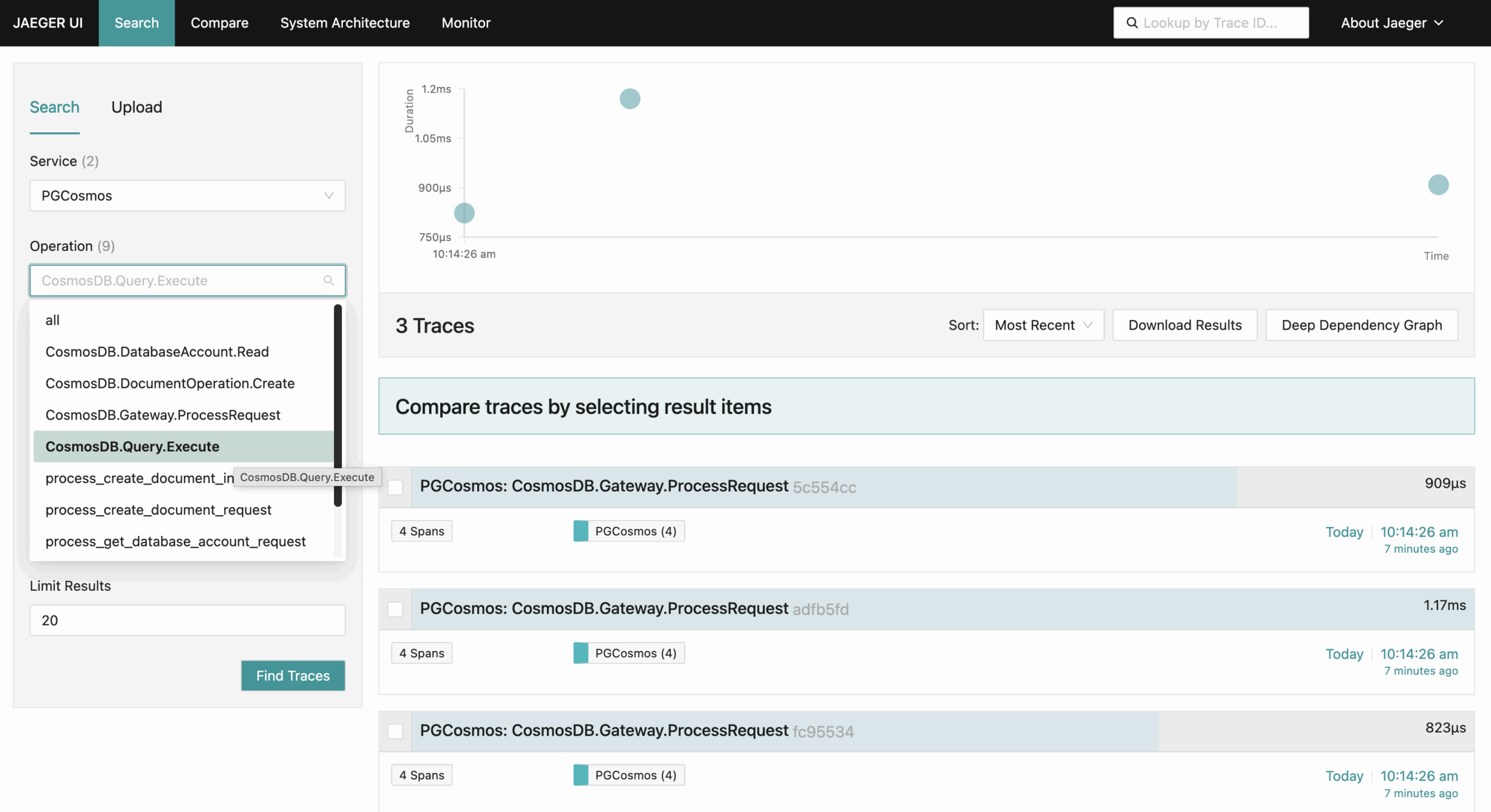
Check the Jaeger UI at http://localhost:16686 to view distributed traces, search for specific operations, analyze request latency, and inspect the execution flow of your queries through the Azure Cosmos DB Emulator:
Check the Prometheus UI at http://localhost:9090 to query and visualize metrics, monitor request rates, track query performance statistics, and analyze resource utilization patterns from the Azure Cosmos DB Emulator.

Health Probe
The emulator exposes health check endpoints on port 8080 that return a HTTP 200 OK response when all components (Gateway, Data Explorer, etc.) are fully operational.
This is particularly valuable for integration testing frameworks like Testcontainers, which provide waiting strategies to ensure containers are ready before tests run. Instead of using arbitrary sleep delays or log messages (which are unreliable since they may change), you can configure a waiting strategy that will check if the emulator Docker container is listening to the 8080 health check port.
Here’s a Go example using testcontainers-go library:
func TestMain(m *testing.M) {
	req := testcontainers.ContainerRequest{
		Image:        emulatorImage,
		ExposedPorts: []string{"8081:8081", "8080:8080"},
		WaitingFor:   wait.ForListeningPort(nat.Port("8080")), // Wait for health check port
		// WaitingFor: wait.ForLog("PostgreSQL=OK, Gateway=OK, Explorer=OK, Ready=YES"), //this works but is less reliable, hence not recommended

	}

	_, err := testcontainers.GenericContainer(context.Background(), testcontainers.GenericContainerRequest{
		ContainerRequest: req,
		Started:          true,
	})

	if err != nil {
		log.Fatal(err)
	}

	// Create credential and client
	cred, err := azcosmos.NewKeyCredential(emulatorKey)
	if err != nil {
		log.Fatal(err)
	}

	client, err = azcosmos.NewClientWithKey(emulatorEndpoint, cred, nil)
	if err != nil {
		log.Fatal(err)
	}

	m.Run()
}
Available endpoints:
| Endpoint | Purpose | Behavior |
|---|---|---|
| http://localhost:8080/alive | Liveness probe | Returns 503 if PostgreSQL and Gateway are unhealthy |
| http://localhost:8080/ready | Readiness probe | Returns 503 if any component is not operational (disabled components like Explorer are excluded) |
| http://localhost:8080/status | Status information | Always returns 200 with detailed JSON status for all components |
Conclusion
The latest Azure Cosmos DB Emulator release eliminates key query limitations and adds observability features, enabling you to develop and test more complex scenarios locally. You can now implement advanced data access patterns with nested JOINs, leverage operator support for string and array manipulation, and monitor your application’s behavior with OpenTelemetry. You can start using these capabilities to accelerate your development workflow and catch issues earlier in your development cycle.
About Azure Cosmos DB
Azure Cosmos DB is a fully managed and serverless NoSQL and vector database for modern app development, including AI applications. With its SLA-backed speed and availability as well as instant dynamic scalability, it is ideal for real-time NoSQL and MongoDB applications that require high performance and distributed computing over massive volumes of NoSQL and vector data.
To stay in the loop on Azure Cosmos DB updates, follow us on X, YouTube, and LinkedIn.


Interesting, reminds me to test this again with our C# and Aspire set-up.
Seems like lots of Microsoft devs are (vibe-)coding in python, running OSS rather than their own products. Takes me back to the early .Net days where WPF was introduced in all possible editors (vim, emacs, etc) but not in Visual Studio. Meanwhile corporate developers were struggling with VS.