

You can now open Azure Cosmos DB Shell directly from Data Explorer in the Azure portal.
The shell gives you a terminal-style way to work with Azure Cosmos DB. You can move through databases and containers as you would through folders, run NoSQL queries, inspect resources, and update data. When you launch it from Data Explorer, it is already connected to the account you are viewing.
Open a shell from Data Explorer
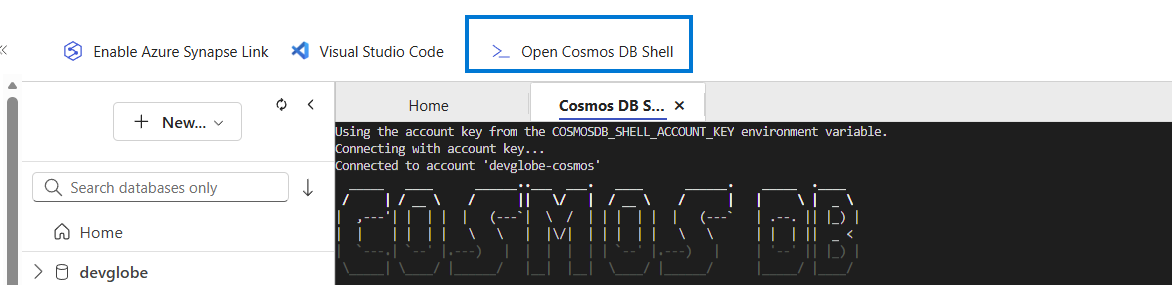
Open an Azure Cosmos DB for NoSQL account in the portal, go to Data Explorer, and select Open Cosmos DB Shell from the toolbar.
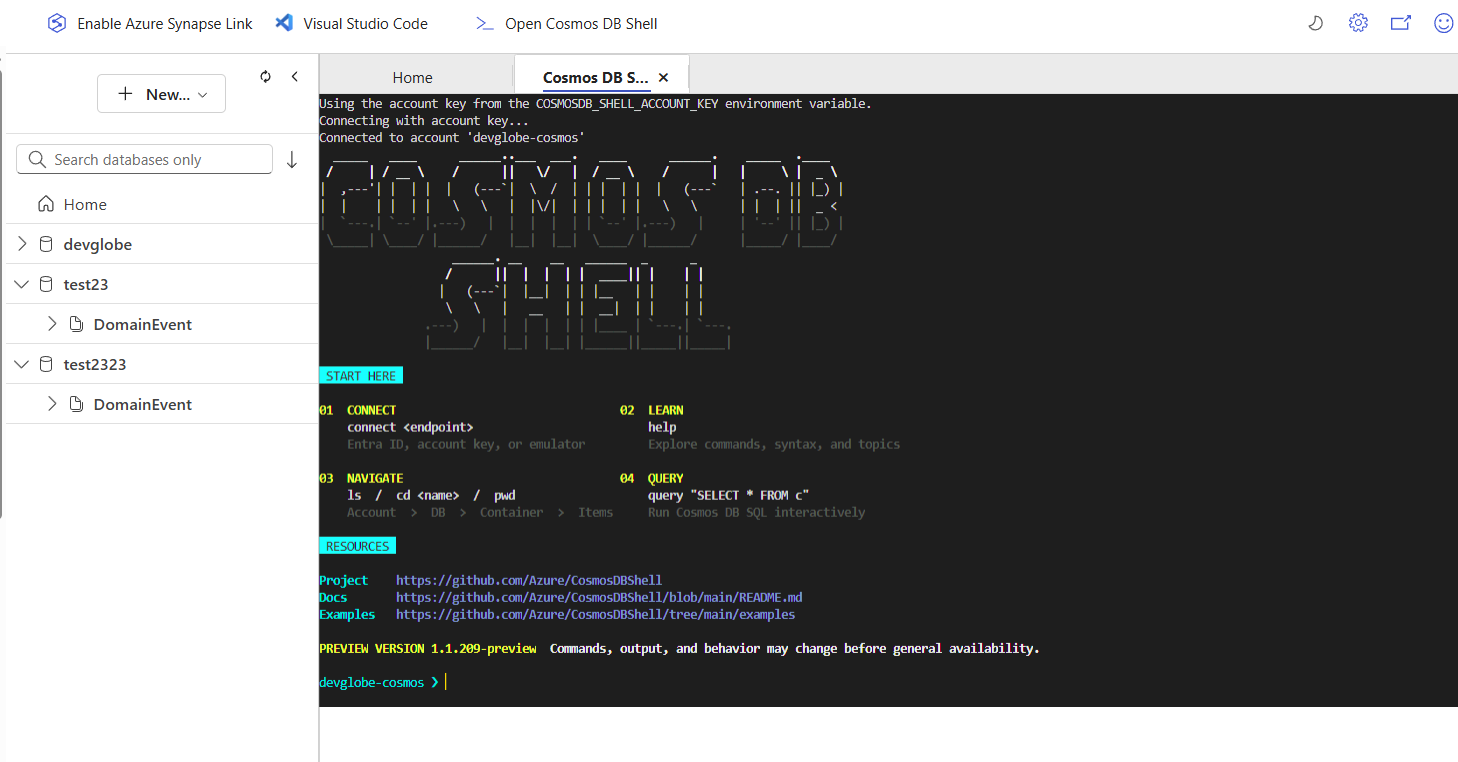 The shell opens in a new tab and connects to the selected account. You do not need to copy an endpoint or connection string into another terminal. This makes it easy to browse a container, open the shell, and investigate the same data while keeping your place in the portal.
Azure Cosmos DB Shell is currently a preview. Commands, output, and behavior may change before general availability.
Find your way around
Navigation follows familiar command-line conventions. Use ls to see what is available, cd to enter a database or container, and pwd to check your current location.
After entering a container, you can run a NoSQL query directly:
Navigation and queries are only part of what the shell can do. You can also:
- Inspect account, database, and container configuration with info.
- Infer document fields and types from a bounded sample with schema.
- Check the current credential and safely probe access with whoami and can-i.
- Create, replace, patch, and delete items.
- Inspect indexing policies and provisioned throughput.
- Build repeatable workflows with variables, pipelines, loops, functions, and scripts.
Type help at any time to see the available commands, syntax, and topics.
When the portal shell is useful
Sometimes opening another tool and setting up a connection takes longer than the task itself. The portal shell is handy when you need to check a document, validate a query, inspect a container, or make a targeted change while you are already in Data Explorer.
The same commands also work in the standalone Azure Cosmos DB Shell. An investigation that begins in the portal can therefore become a repeatable script or an automated workflow later, without learning a separate command set.
Get started
To try it, open your Azure Cosmos DB for NoSQL account in the Azure portal, go to Data Explorer, and select Open Cosmos DB Shell. For more detail, visit the Azure Cosmos DB Shell repository, browse the command reference, or read the programming guide.
Azure Cosmos DB Shell is still in preview, so feedback is especially useful. Tell us what works, what gets in your way, or what you would like to see next in the issue tracker.
About Azure Cosmos DB
Azure Cosmos DB is a fully managed and serverless NoSQL and vector database for modern app development, including AI applications. With its SLA-backed speed and availability as well as instant dynamic scalability, it is ideal for real-time NoSQL and MongoDB applications that require high performance and distributed computing over massive volumes of NoSQL and vector data.
To stay in the loop on Azure Cosmos DB updates, follow us on X, YouTube, and LinkedIn.


0 comments
Be the first to start the discussion.