


We’ve shipped the new Run dialog – and we want to say thanks. As the team behind Windows Terminal and PowerToys, we’re excited to bring this to Windows 11, and your feedback helped shape it!
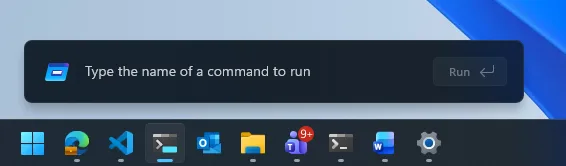
Run has been rebuilt from the ground up:
- Modern design: A refreshed look that matches Fluent Design and Windows 11, with dark mode support.
- Faster than before: Perf was top-of-mind when rewriting Run, and with a **94ms median time-to-show time it’s faster than ever before (more on how we got there below)!
- Quick user directory access: You can now type
~\to jump to your user directory, then keep navigating just like you would from the command line.
The modern Run dialog is slowly rolling out in current Insider builds of Windows as an opt-in feature, ensuring we are collecting your feedback. To enable the new Run dialog, you’ll need to:
- Be on Windows Insider Experimental Channel.
- Enable to Settings -> System -> Advanced and toggle on the new experience with the “Run Dialog” option at the top of the screen.
⛏️ How we’ve built it: Data-and-community driven
Windows Run, also known as the Run dialog, is a surface that has been around for over 30 years. It has become a heavily relied upon tool for developers and advanced users alike. Users have decades of muscle memory where they hit Win+R, navigate through their Run history, and hit Enter to quickly access various paths and tools. We all have our favorite tool we launch there as well. For us, some of our favorites are wt (Windows Terminal), mstsc (Remote Desktop) and winword (Microsoft Word). But it’s more than jUsT a TeXt BoX tHaT rUnS tHiNgS. The Run dialog can handle navigating both local and network file paths as well. And everything it does, it does fast. Win+R opens the run dialog seemingly instantly.
If we wanted to modernize the Run Dialog to fit the modern Windows 11 design style, we had to make sure it did everything just as well as before. We needed to maintain the same performance while also keeping the user interface minimal, just as Windows 95 intended.
🔬 Data driven engineering
When we set out on creating the new experience, we knew the existing dialog was fast. We also knew we needed to be sure we deeply understood how you all used it. Modernize, be opinionated, and evolve it. To help evolve, we added a measure briefly to the dialog to see what was being used and to measure time-to-show. This confirmed learned a few key things that helped the design process.
- The existing dialog median time-to-show is 103ms
- The browse button has very low usage. 0.0038% of users have clicked that button with a sample of 35 million.
- Validated users do use the dialog to paste text from the clipboard, then copy it again without running anything to scrub text formatting.
Knowing exactly what was being used and how fast it was helped form a baseline that we could use to build the next iteration. From here, the rest of the story can continue.
🏃♂️➡️ Building the new Run
This rejuvenation started a few years ago and here are some of them mockups from our earliest designs:

Many of these prototypes were heavily inspired by PowerToys Run and a key theme of doing work quicker with your keyboard. In fact, PowerToys has been our testing ground for a lot of these ideas over the last couple years. With PowerToys, we could iterate quickly on experiments with direct community feedback and really polish these ideas.
These mockups ultimately inspired the creation of the Command Palette (“CmdPal”) which is in PowerToys today! CmdPal was a hackathon project trying to create the next iteration of PowerToys Run – one that could ultimately be a part of the OS itself. With CmdPal, we could iterate on building a native WinUI 3 application that’s just as fast as the run dialog. You read that right – the new Run dialog is a C#/WinUI 3 application. It’s compiled with dotnet AOT, so that it can bring all the blazing speed of native code, with the safety and modern language features of C#.
By our measurements, the modern run dialog has a median time-to-show of just 94ms. This was a huge team effort – we’ve collaborated tightly with partners across the platform to get these UI surfaces loading snappy. Improvements we’ve made to the platform don’t just make Run fast, but they help make the whole OS more efficient. Overtime, we expect these numbers to improve as well as there is still room for improvement.
From PowerToys to Windows: CmdPal powers the new Run experience
CmdPal is a lot more than just a run dialog, of course. But the same code that powers CmdPal in PowerToys has now become a part of the new Run Dialog. In fact, the run command provider in CmdPal is exactly the same code as the new Run Dialog! Anyone who’s ever contributed to CmdPal has helped build a part of Windows. Our team strongly believes in the power of open source. Our community is amazing, and we want to thank you all for helping make the new Run Dialog amazing!
💘 New feature: ~\ for quick home directory access and icons in the list
Ever wanted a super quick way to be in your user directory? Type ~\ and you’ll be in your home directory and can freely navigate from there just like you can from the command line.
👀 Feedback to improve
The most important thing to our team is getting feedback and constantly iterating and improving. This dialog may seem small, but for some folks it is a mission critical part of your workflow. We want to be sure it works for everyone. Please use the Feedback hub (Or Win+F since we are all keyboard-first users here 😊).
Mike, Kayla, Jessica, Niels, Tasha, Chris, Dustin, Clint and many more. ❤️ Terminal and PowerToys team


so.. uh.. do they get paid now for every Windows license?
Why is microsoft posting a devblog about reducing run dialog TTS by 8% (9ms)? With a starting TTS of 103ms, how about getting it down to 9ms? Full 3D triple-A games render full frames faster than 9ms.
What are we even doing here?
Also, “time-to-show time” ?
This reads like a freshman CS project report where they did nothing and need to hit a word count in their report so the TA doesn’t realize.
>This reads like a freshman CS project report where they did nothing and need to hit a word count in their report so the TA doesn’t realize
This is written by Copilot. What do you expect?
Why is this a blog post? I’m embarrassed for you.
I assume you’re an intern and this is the first features you’ve ever implemented. That’s great, but just tell your mom next time.
Also, 94ms is extremely slow to open a run dialog!
… is there a reason you choose to come out here and be an ass?
Love this to be made available to Insider Release Preview! I’d start using it now! (We’ve had something like this in various Linux distributions for some time, now.)
Great direction! I appreciate these changes in Windows. Making things faster, simpler, and improving the frameworks while you’re at it. Great stuff!
I’d love to learn more about the performance improvements you made. While plenty fast, 100ms is still an eternity, depending on your perspective.
Great start to the blog. It fills me with confidence that you won’t ruin it, especially when I think about how AbSoLuTeLy gReAt nOtEpAd hAs bEcOmE.
In the old Run dialog, you can jump to user directory with a . (Dot)
Just saying, 1 character.
Never knew this! Thanks for the tip!
Like me and many others, MS “Run dialog” team may not be aware of this one dot shortcut. They own you Thank you! 🙂
He is using winui3 as well so no Electron in the firat place.
I am curious to know more about the performance work. You mention, "more on how we got there below" but then the below is just "a huge team effort – we’ve collaborated tightly with partners." Which isn't really any sort of a technical explanation. Don't get me wrong, in a large corporation I understand that inter-team logistics and communication across silos can actually be a lot of interesting work.
For starters, what made the original so slow? It takes a lot less than 100ms for native Win32 code to paint a simple window with three standard buttons. ...
Yep, that "faster than ever before" is just a straight up lie. But what else can you expect from a AI-written blog post.
Sounds like more par for the course from the Microsoft we all know. Why don't you keep on trying to screw us over some more? I think I'll permanently switch to Linux. I've spent thousands on Windows-only software but whatever. If they hate their users this much, I really just don't want the company to even exist in my world anymore.