


Overview
Working with table data is an essential part of database development — whether you’re validating behavior, debugging issues, or quickly seeding data. But switching between tools or writing repetitive T-SQL statements can slow down your workflow.
We are excited to announce the Public Preview of Edit Data in the MSSQL extension for Visual Studio Code — a modern, interactive way to browse and modify table data directly within the editor. Edit Data (Preview) brings a familiar, spreadsheet-like experience, combining inline editing, validation, pagination, and real-time script generation into a fast and intuitive workflow tailored for developers.
Edit Data is in Public Preview.
We are actively adding more features, improving usability, and expanding capabilities. Your feedback is extremely important — please tell us what works, what doesn’t, and what you’d like us to improve.How to get started: Enable Experimental Features (Required)
To use Edit Data (Preview), you must enable the experimental features setting in the MSSQL extension.
-
Open Settings in VS Code
-
Search for “MSSQL: Enable Experimental Features”
-
Check the box to enable it
-
Reload VS Code if prompted
Edit Data is only available in MSSQL extension v1.37 or later.
If you do not see the option, update your extension first.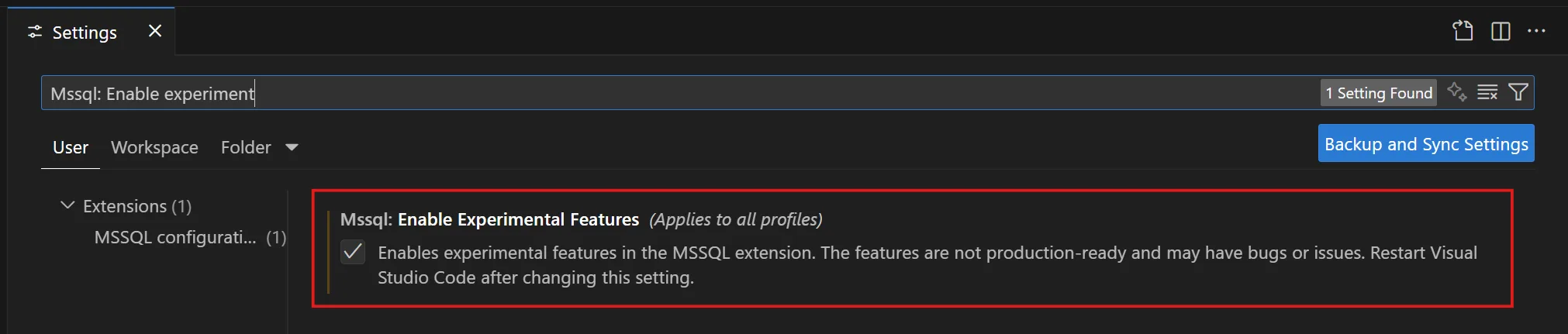
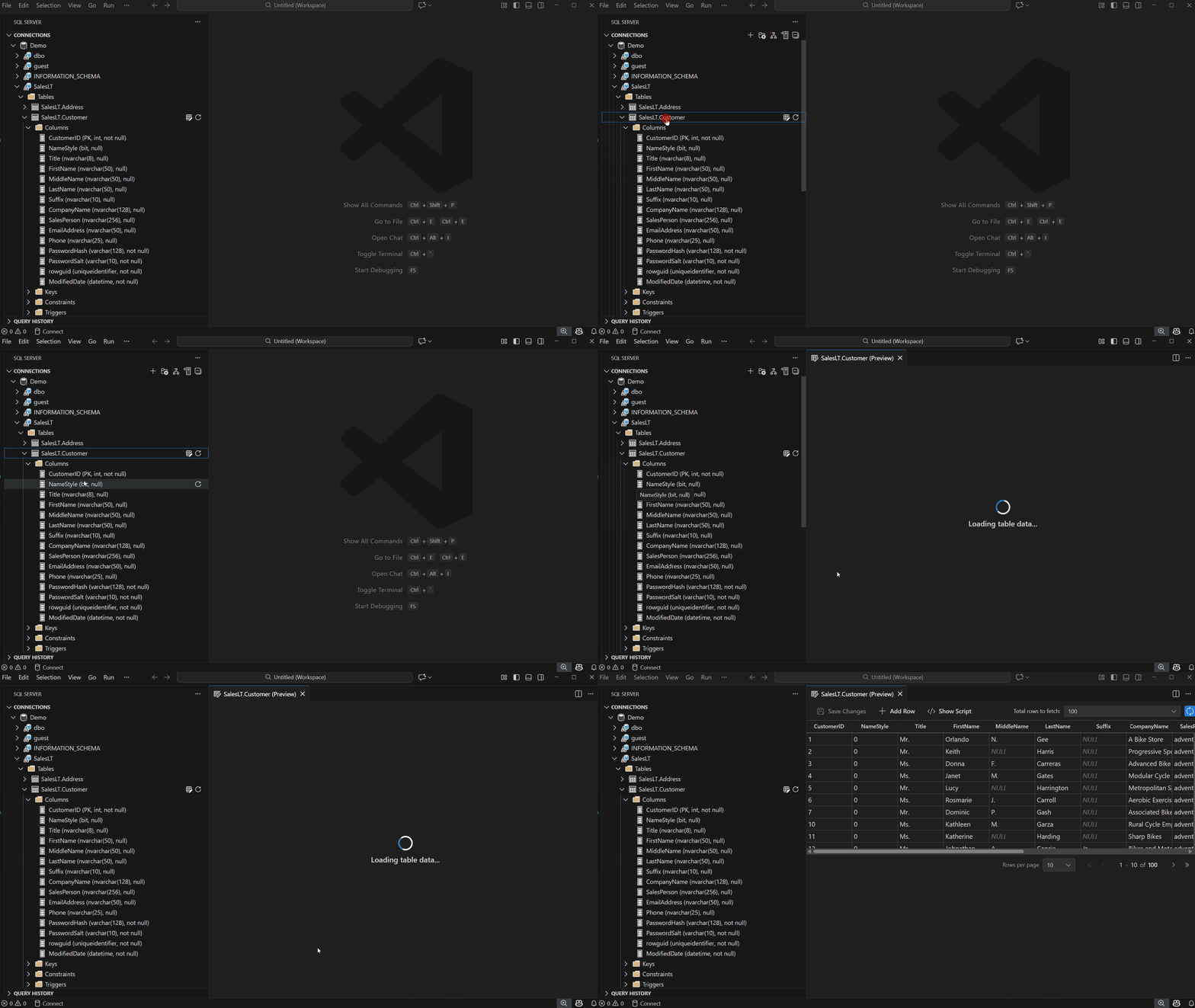
Open Edit Data
To launch the Edit Data experience:
-
Right-click any table in the Object Explorer and select “Edit Data (Preview)”
-
Or simply double-click the table name
This opens a new editor tab containing the data grid for that table.
Browse and Edit Table Data
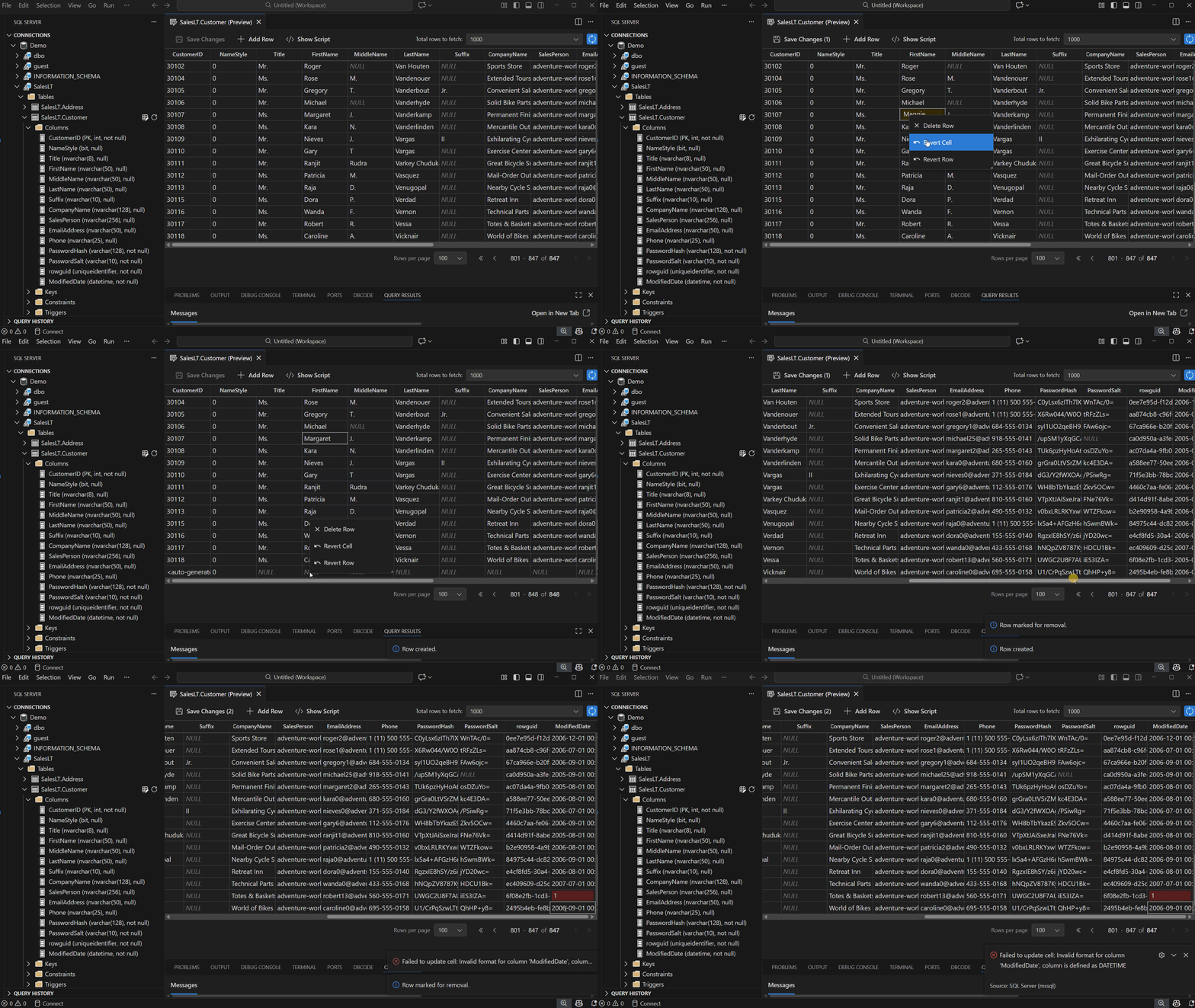
- Inline Editing: Double-click any cell and start typing to update its value.
- Add & Delete Rows: Use the toolbar to insert new rows or right-click to delete existing ones. Edits appear as pending changes until you save.
- Revert Edits: Right-click a row or cell to Revert Row or Revert Cell, restoring its last saved value.
Once you edit a cell, your changes are validated immediately — even before saving. Edit Data (Preview) checks for invalid data types, unique or primary key violations, NULL values in non-nullable columns, and more. If an issue is detected, an error dialog appears to help you understand and resolve the problem.
View Changes in Show Script Pane
Select Show Script in the toolbar to open a read-only pane displaying the DML generated by your edits — including INSERT, UPDATE, and DELETE statements.
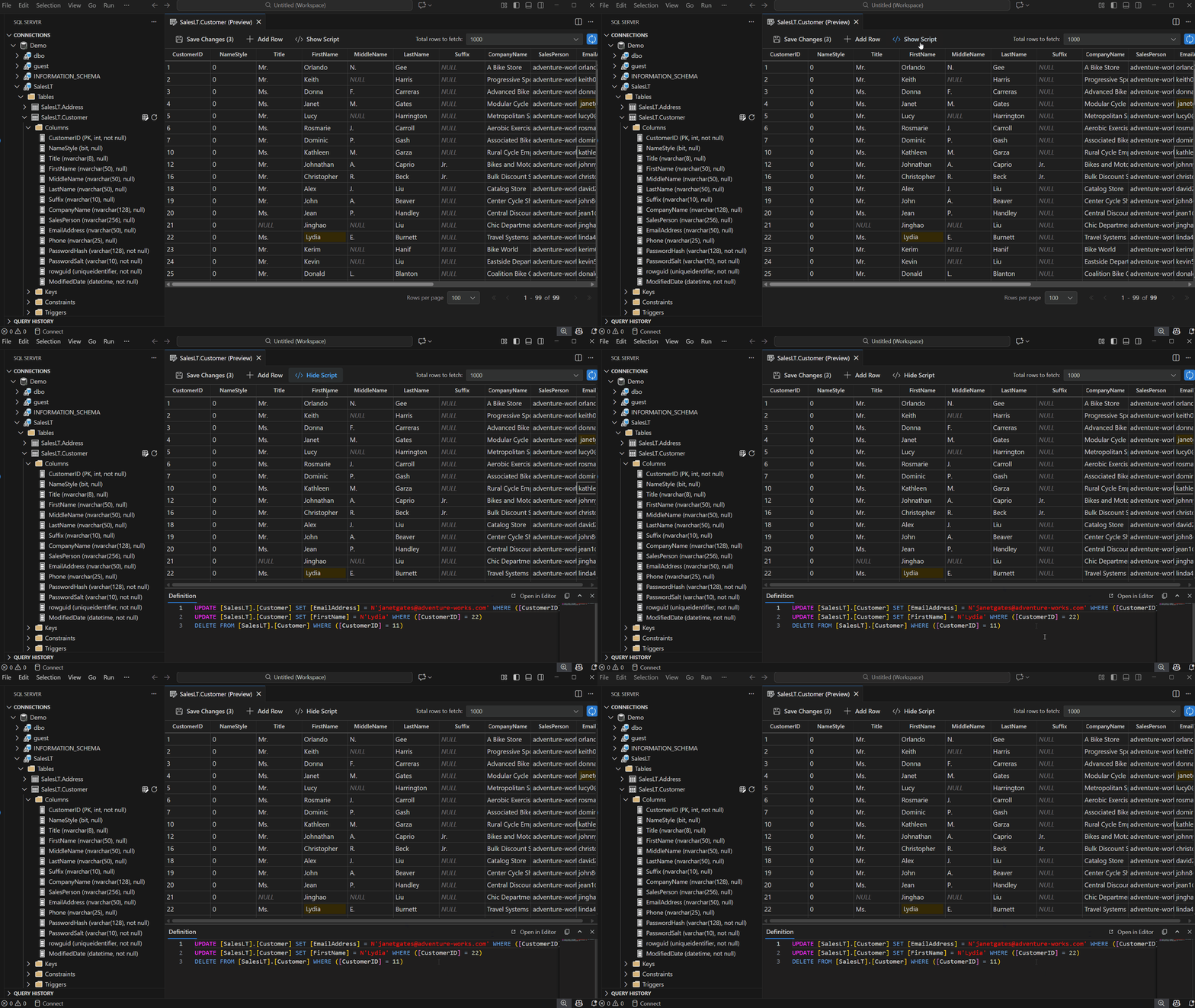
The script updates automatically as you modify or revert data.
Save or Discard Changes
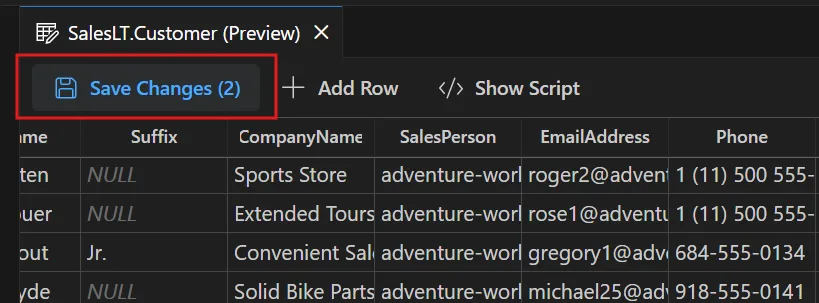
When ready, choose Save Changes to commit your updates.
Pagination and Row Fetching
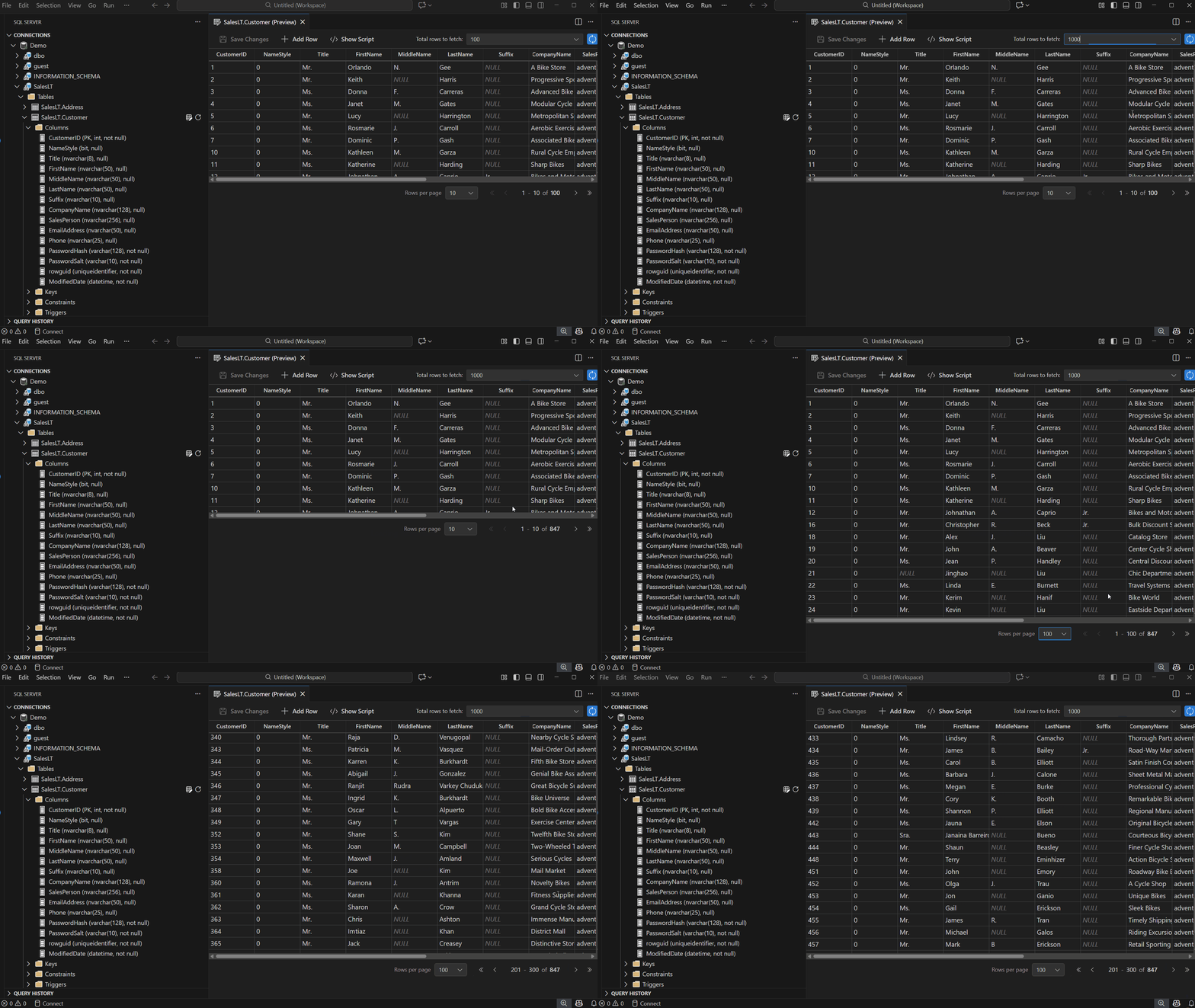
Edit Data is designed for smooth navigation across large datasets — modify Total rows to fetch, adjust Rows per page, navigate between pages — allowing you to locate records quickly.
Next Steps
- Install the MSSQL extension for Visual Studio Code if you haven’t already: Learn how
- Watch the demo video on YouTube: Watch now
- Report Bugs: Open an issue
- Submit Feature Requests: Suggest an feature
- Connect and discuss with other developers: Join the discussion
Edit Data is still in Public Preview — and we are actively adding more capabilities, refining interactions, and enhancing performance. Your feedback right now is critical and directly shapes what we build next. Please share your thoughts — every piece of feedback helps!


0 comments