

Writing and maintaining SQL is easier when you can eliminate repetitive steps and keep your scripts cleanly formatted. With the MSSQL extension for VS Code v1.45, we’re introducing the Public Preview of the SQL Formatter alongside the General Availability of Azure SQL Database Provisioning and Shortcuts Configuration. You can now apply consistent T-SQL formatting across your projects, create free tier cloud databases with automated post-deployment actions, and streamline frequently used commands and queries directly inside Visual Studio Code.
What’s new in MSSQL extension for VS Code v1.45
Here’s a summary of the key features in this release:
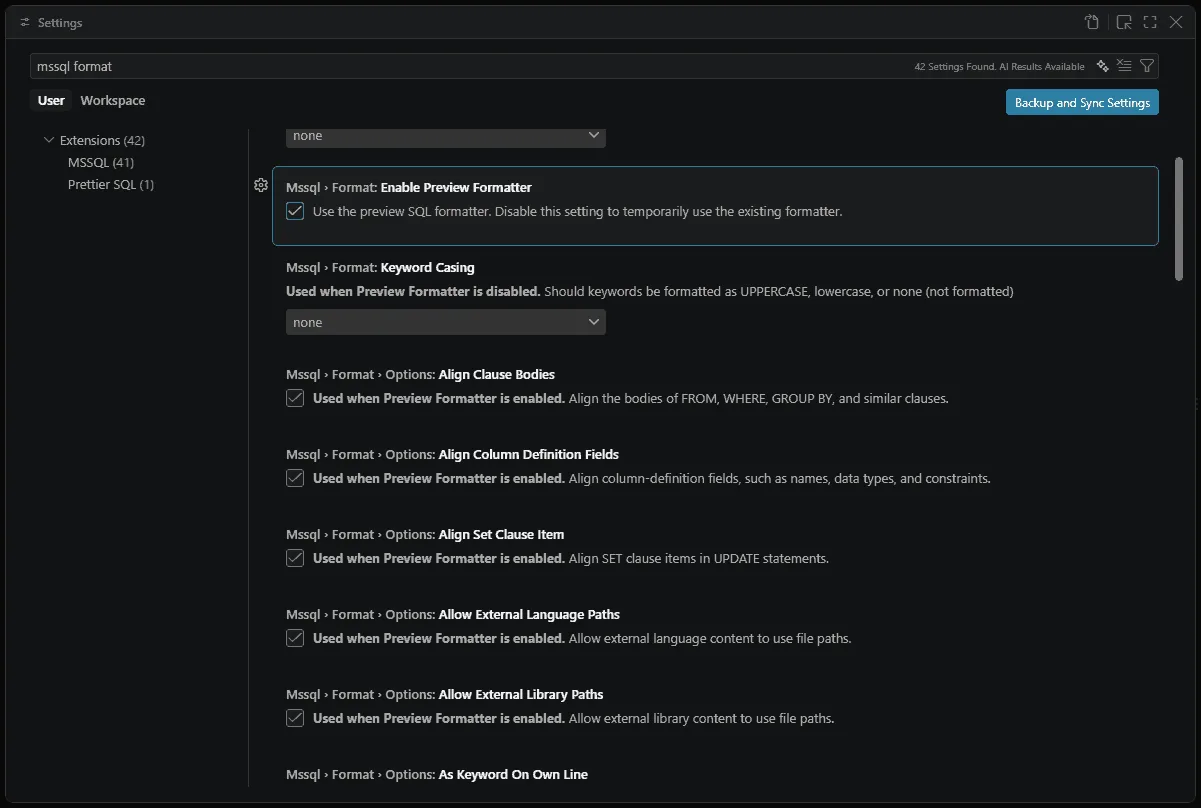
- SQL Formatter (Preview): Format an entire T-SQL document or a selected section on demand, format automatically on save, and customize formatting through Visual Studio Code settings.
- Azure SQL Database Provisioning (GA): Easily create new free tier Azure SQL databases with a single-page wizard, export deployment scripts (ARM, Bicep, Terraform), and run post-deployment actions.
- Shortcuts Configuration (GA): Configure, manage, and launch frequently used SQL queries and MSSQL commands from one unified experience.
SQL Formatter (Preview)
The new built-in SQL Formatter helps you apply a consistent style to T-SQL directly in Visual Studio Code. Built on ScriptDOM—the open-source .NET library for parsing and generating T-SQL—the formatter can format complete documents or selected statements on demand, or run automatically whenever you save.
Format T-SQL on demand via the editor context menu or the Command Palette (Format Document / Format Selection), and standard keyboard shortcuts (Shift+Alt+F on Windows and Linux, or Shift+Option+F on macOS).
Key highlights
- Format on demand and on save: Format entire SQL documents or selected snippets manually, or enable automatic formatting on save with standard Visual Studio Code editor settings.
- Customizable casing and alignment: Adjust keyword casing (uppercase, lowercase, Pascal case), align clause bodies and column definitions, and configure statement line breaks.
- Multiline list formatting: Control line breaks and indentation for
SELECTelements,INSERTcolumns and values,WHEREpredicates, andSETclauses. - Preserve comments and notify on parse errors: Keep existing code comments intact and receive clear notifications if syntax errors prevent formatting.
For full documentation, see SQL formatter.
Azure SQL Database Provisioning (GA)
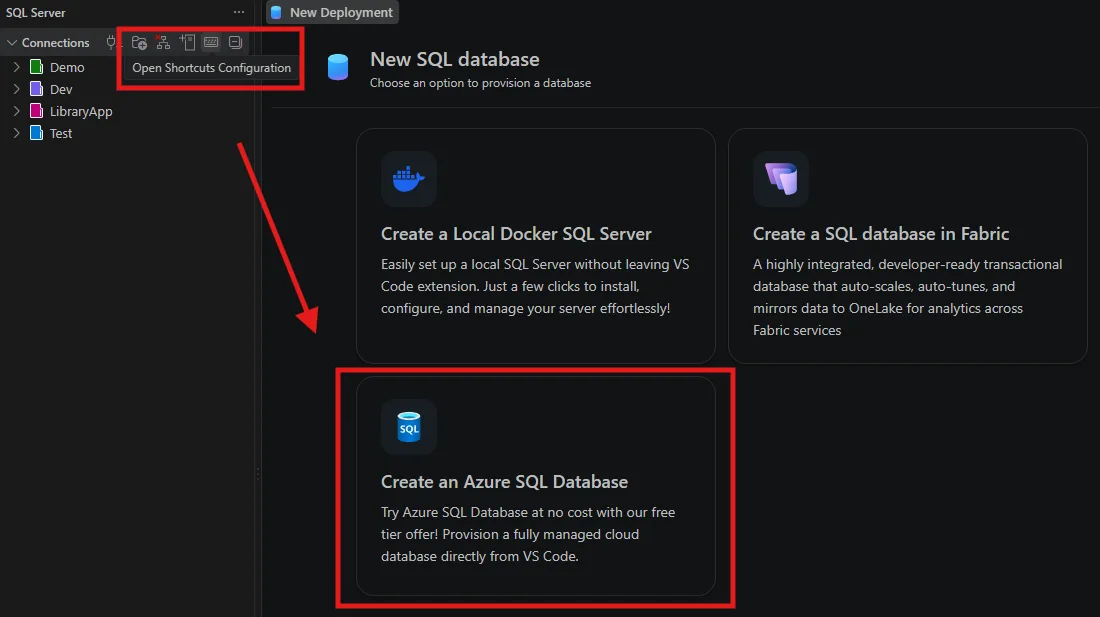
Azure SQL Database provisioning is now generally available, giving developers an easy, guided way to create a fully managed free tier Azure SQL database directly from Visual Studio Code at no cost.
Access the wizard by opening the Deployments view from the MSSQL Activity Bar and selecting Create an Azure SQL Database. Configure your subscription, resource group, logical server, and database on a single page, and choose your preferred limit behavior (auto-pause or continue at serverless rates). Your database connection is added automatically the moment provisioning completes.
Key highlights
- Free tier cloud database: Provision a fully managed Azure SQL database at zero cost for prototyping, proof-of-concept projects, or dev/test workloads.
- Post-deployment actions: Instantly copy connection strings and migration commands from the completion screen to jumpstart application development.
- Download deployment scripts: Export ready-to-use Infrastructure-as-Code templates in ARM, Bicep, and Terraform formats to replicate deployments across teams and environments.
For full documentation, see Create an Azure SQL Database (Free Tier).
Shortcuts Configuration (GA)
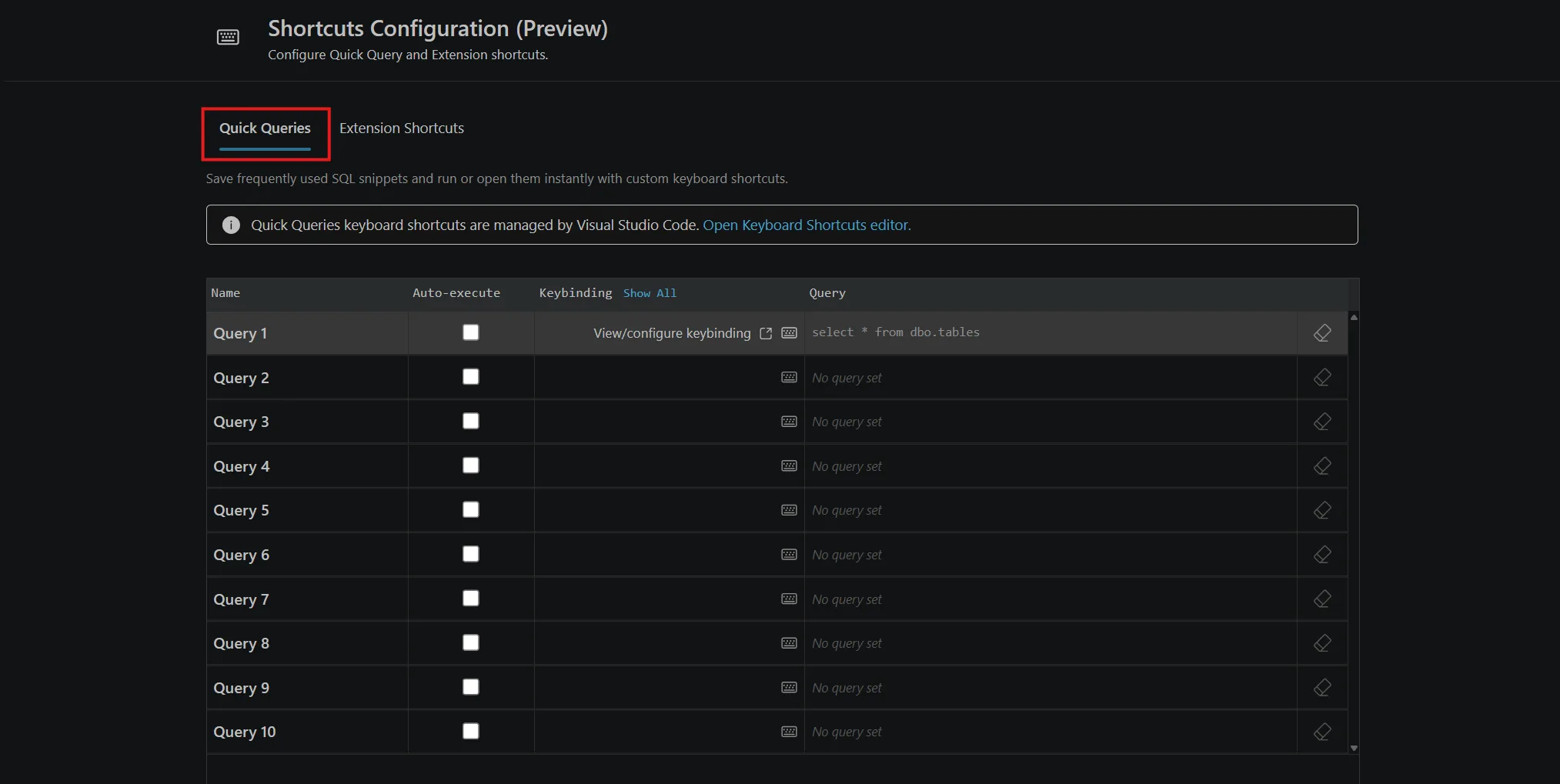
Shortcuts Configuration is now generally available, providing a centralized experience for discovering, configuring, and managing shortcuts across the MSSQL extension. Use it to save reusable SQL queries, assign the keybindings that fit your workflow, and quickly find commonly used commands for the query editor and results view.
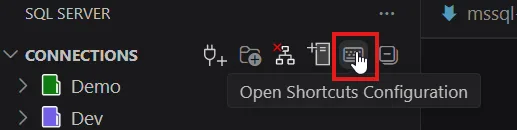
Open the experience by selecting Open Shortcuts Configuration from the MSSQL extension toolbar.
Key highlights
- Quick Queries: Save frequently used T-SQL snippets and run them with custom keyboard shortcuts, reducing repetitive work for common database tasks.
- Selected text insertion: Insert selected query-editor text anywhere in your query using the
{arg}placeholder. If you don’t use the placeholder, selected text is automatically appended to the end of the query. - Run or review: Choose whether a Quick Query runs immediately or opens in the query editor so you can review and modify it first.
- Query Editor shortcuts: Discover and customize commonly used MSSQL commands for query execution, connections, and other editor actions.
- Results View shortcuts: View the available keybindings for navigating and working with query results.
- Visual Studio Code integration: Assign and manage custom keybindings through the standard Visual Studio Code Keyboard Shortcuts editor.
For full documentation, see Shortcuts Configuration.
Conclusion
The MSSQL extension for VS Code v1.45 delivers features that streamline development and simplify database management. The new SQL Formatter preview gives you flexible, ScriptDOM-based formatting on demand or whenever you save, while Azure SQL Database Provisioning and Shortcuts Configuration are now generally available to help you spin up free tier cloud databases effortlessly and customize keybindings.
If there’s something you’d love to see in a future update, here’s how you can contribute:
- 💬 GitHub discussions – Share your ideas and suggestions to improve the extension
- ✨ New feature requests – Request missing capabilities and help shape future updates
- 🐞 Report bugs – Help us track down and fix issues to make the extension more reliable
If you’d like to learn more about the MSSQL extension, you can:
- 🎬 Watch the demos: Explore key features through our YouTube playlist
- 🤖 Watch the GitHub Copilot demos: Learn how to use GitHub Copilot to write, explain, and refactor your database schema
- 📝 Read the blog posts: Learn from use cases, walkthroughs, and product updates
- 📖 Read the documentation: Get started or go deep with our official docs
- 🗺️ Check out the roadmap: See what’s coming next, including upcoming features and improvements
Thanks for being part of the journey—happy coding! 🚀


0 comments