


If you’ve been building local prototypes, internal tools, web backends, or lightweight services on SQL Server Express, you know the routine: it’s free, familiar, and gets the job done – until you hit hardware limits or spend weekends manual backup scripts and handling OS patches. Learn how to upgrade from SQL Server Express to Azure SQL Database free tier in 3 simple steps.
Whether you’re running SQL Server 2022 (or older) and hitting the hard 10 GB storage wall, or using SQL Server 2025 and realizing 50 GB of disk space doesn’t solve the strict 1.4 GB memory bottleneck, staying on Express limits your application’s growth.
The good news? You don’t have to choose between local development speed and cloud capability. You can build locally for free with Azure SQL Developer (a free container image of the Azure SQL Database engine, in preview) or deploy directly to the Azure SQL Database Free Tier in the cloud—which is 100% free for both dev/test and production workloads.
Note: if your Express instance was installed by a packaged application, the move depends on the vendor supporting Azure SQL Database as a target. Check with your application provider first. This guide assumes you own the app and its connection string.
Why Make the Switch? (SQL Server Express vs. Azure SQL DB Free Tier)
While SQL Server Express is a familiar starting point, cloud-ready applications quickly outgrow its hardware and management constraints:
| Feature / Limit | SQL Server Express (2025) | Azure SQL Database Free Tier |
| Max Database Size | 50 GB per | 32 GB per database (+ 32 GB free backup storage), up to free 10 databases per subscription |
| Compute Limit | 1 socket / 4 cores max | Auto-scaling up to 4 vCores (100k vCore sec free/month) |
| Memory (Buffer Pool) | Capped at ~1.4 GB RAM | Dynamic serverless memory allocation |
| Automation & Jobs | No SQL Agent / No HA | Automated backups, auto-patching, and built-in HA |
| Local Container Option | Docker SQL Server Express image | Azure SQL Developer container (100% free local engine) |
Note: We recommend Azure SQL Database free tier for internal tools, seasonal or after-hours workloads, dev/test and/or functional or integration testing, and you can seamlessly move to Azure SQL Database serverless for your production.
The Bottom Line:
- On Express 2022 or earlier? You break free from the 10 GB limit.
- On Express 2025? You escape the 1.4 GB RAM ceiling that causes severe performance throttling under load.
- On both: Whether running dev or small production workloads, you get the latest AI features, automated backups, built-in high availability, and zero OS patching for $0/month.
Not sure which path is yours? If you’re writing code on your laptop and want an inner loop, start with the Azure SQL Developer container — free, no subscription. If you’re currently running SQL Server Express and want to evaluate Azure SQL Database, the Azure SQL Database free tier is a great way to validate compatibility, test your application, and explore the managed service experience at no cost. Because the free tier includes a limited monthly compute allocation and is not intended for always-on production workloads, we recommend moving to a paid Azure SQL Database tier once you’re ready to run a production application. The container can continue to serve as your local development environment.
🛠️ Need Local-First Development? Meet Azure SQL Developer container
If your workflow requires building offline with the latest AI features, running local test suites, or avoiding cloud charges during inner-loop coding, you can use Azure SQL Developer—a 100% free container image running the exact Azure SQL Database engine on your laptop (macOS, Linux, or Windows via Docker/Podman). Learn more and sign up for preview here.
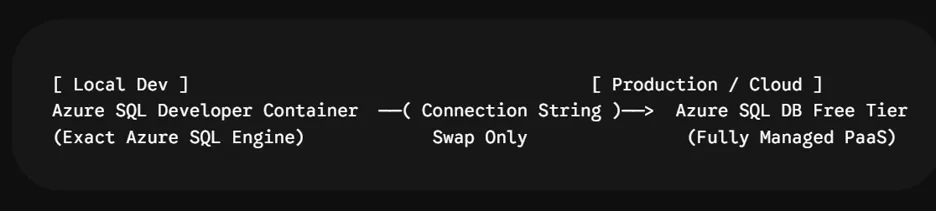
- Zero subscription needed: Free for local dev and CI/CD pipelines.
- Exact engine parity: Same T-SQL, system views, default settings, and AI vector capabilities as the cloud.
- 1-Line Deployment: Moving from local container dev to Azure SQL Database in the cloud requires zero code or driver changes—just swap your connection string.
Upgrade from SQL Server Express to Azure SQL Database free Walkthrough
Whether you’re moving directly to Azure SQL DB Free Tier or starting in the local Azure SQL Developer container, upgrading to Azure SQL DB takes just 3 simple steps:
Watch this 1 minute demo and follow the steps below –
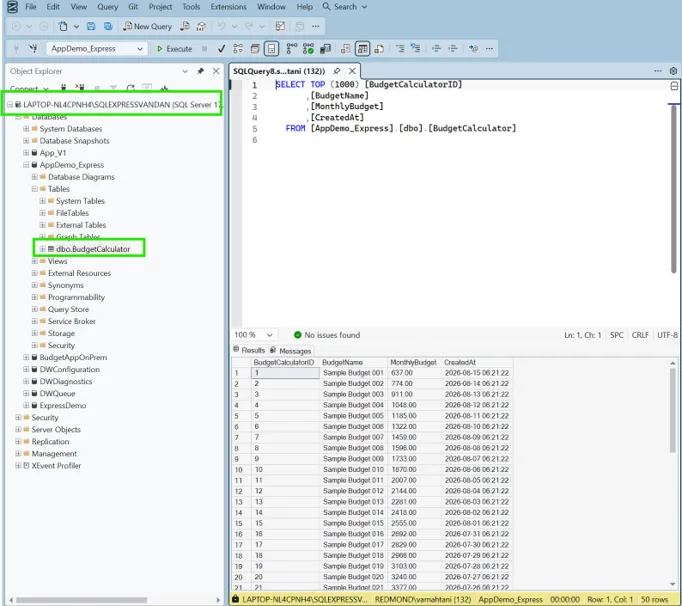
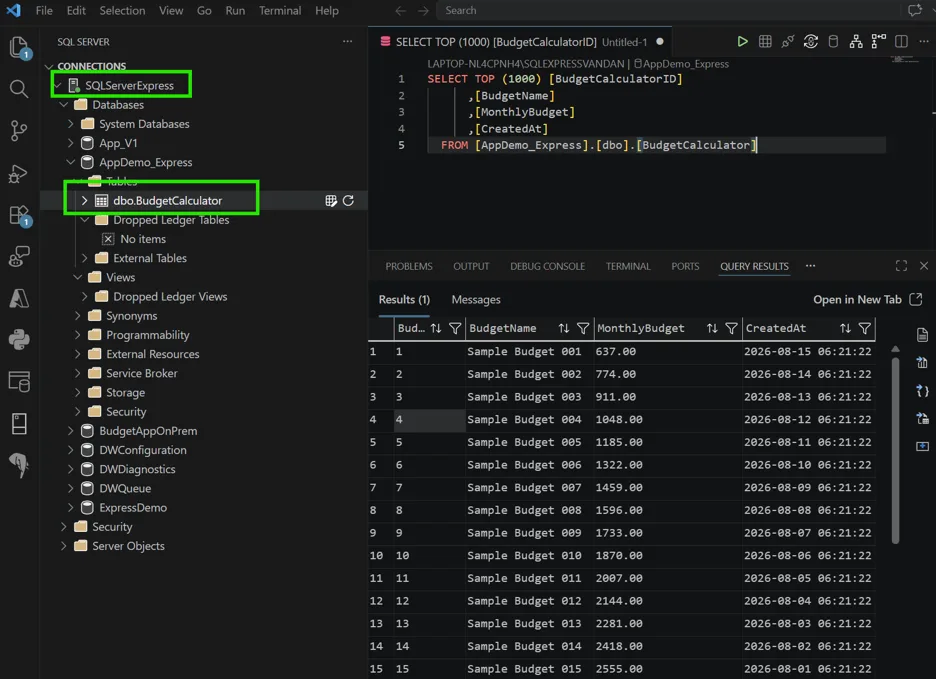
Step 1: Connect to SSMS or mssql in VS Code
- Open your Express database in SSMS or VS Code
SSMS:
mssql VS Code:
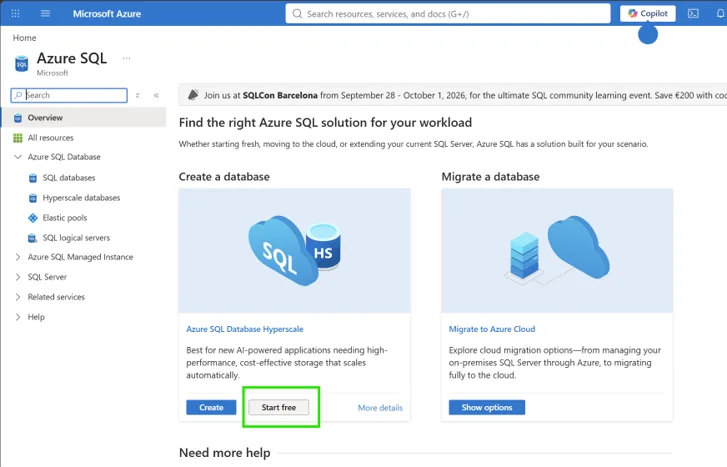
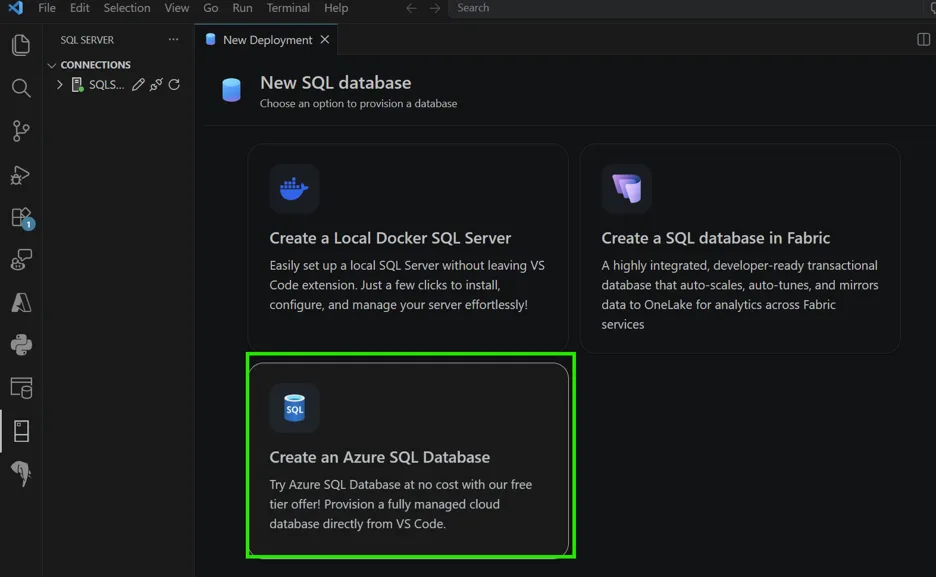
Step 2: Create an Azure SQL free database from VS Code or Azure Portal
- Goto aka.ms/azuresqlhub, and create a free database
- Use mssql extension in VS Code
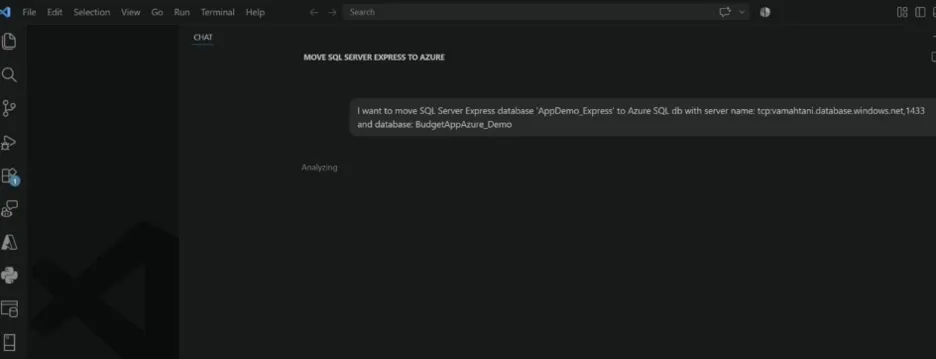
Step 3: Prompt GitHub Copilot to upgrade
Sample prompt, update with your database name and Azure SQL database server name:
“Move my SQL Server Express database ‘AppDemo_Express‘ to Azure SQL db with server name: tcp:vamahtani.database.windows.net,1433 and database: BudgetAppAzure_Demo”
💡 3 Pro-Tips to Maximize the Free Tier
- Leverage Auto-Pause: In the cloud, serverless databases automatically pause after 60 minutes of inactivity, preserving your free 100k vCore-seconds.
- Close Idle Query Tabs: Close open SSMS or VS Code query tabs when done—active connections prevent auto-pause.
- Inner Loop in Container, Outer Loop in Cloud: Develop locally using the Azure SQL Developer container offline, then push your staging/prod builds to the Azure SQL DB Free Tier.
Start here
Go to aka.ms/azuresqlhub, select Start free, and give yourself 20 minutes. Worst case, you have a free cloud database to experiment with and your Express instance is still exactly where you left it. Best case, you never patch a database server again.


0 comments
Be the first to start the discussion.