

Get started faster with common SQL workflows and resources in one place. The MSSQL extension for VS Code v1.46 introduces a new Getting Started page experience in Public Preview with quick actions, guided walkthroughs, dev container templates, and one-click installation of the latest Microsoft SQL agent skills for GitHub Copilot. Available to all customers starting with this release, the skills can be installed by anyone. This release also brings the SQL Formatter to General Availability with more control over T-SQL style, along with reusable Object Explorer filters and expanded Data API builder capabilities.
🎬 Watch YouTube demo:
What’s new in MSSQL extension for VS Code v1.46
Here’s a summary of the key features in this release:
- Getting Started page experience (Preview): Start common tasks, follow guided workflows, use dev container templates, and add Microsoft SQL agent skills to GitHub Copilot.
- SQL Formatter (GA): Format T-SQL on demand or on save with expanded style options.
- Reusable Object Explorer filters: Save frequently used filters by name or quickly reapply recent filters across compatible folders.
- Data API builder improvements: Configure APIs for more database objects and data types with finer exposure and permission controls.
Getting Started page experience (Preview)
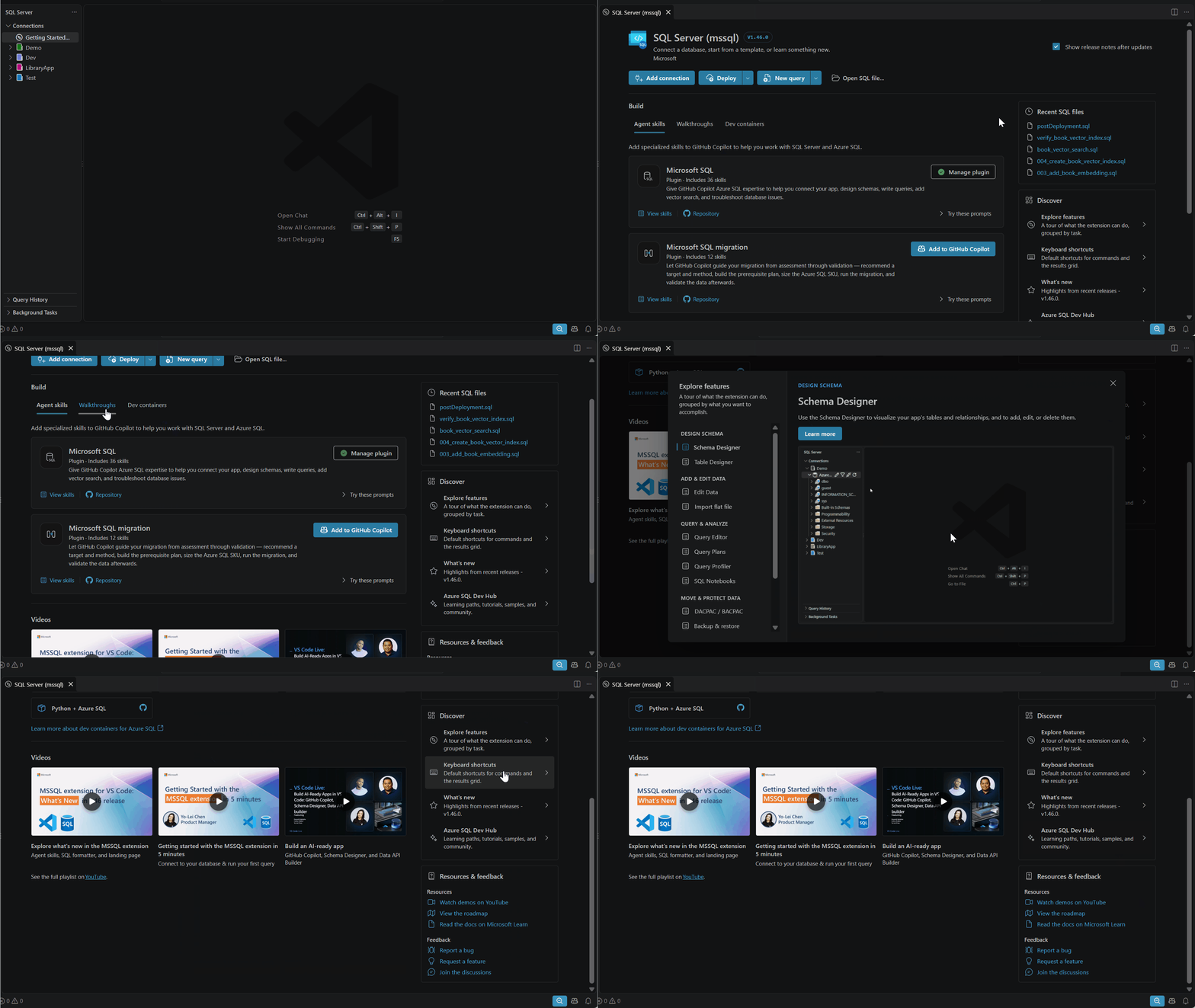
The new Getting Started page puts common actions, guided workflows, and learning resources in one place.
Key highlights
- Start quickly: Add a connection, deploy a database, create a query or notebook, open a SQL file, or return to recent work.
- Follow guided workflows: Learn core database tasks, build an app, or explore GitHub Copilot for SQL.
- Use ready-to-run templates: Add a dev container for .NET, .NET Aspire, Node.js, or Python with Azure SQL.
- Discover more: Find features, shortcuts, release notes, videos, documentation, and feedback links.
Add Microsoft SQL agent skills to GitHub Copilot
Microsoft SQL agent skills are now available to all customers, starting the same day as the MSSQL extension v1.46 release. Select Add to GitHub Copilot on either plugin card to install the latest skills:
- Microsoft SQL: Connect apps, design schemas, write queries, add vector search, and troubleshoot database issues.
- Microsoft SQL migration: Assess, plan, run, and validate migrations to Azure SQL.
Each card lists its skills and includes prompts you can copy or open in GitHub Copilot Chat. Add your application or database details before sending. For example:
Scaffold the schema, migrations, and data layer for this app.Add native vector search and verify the index is used.Assess my database for migration to Azure SQL.Validate my migration before I cut over.
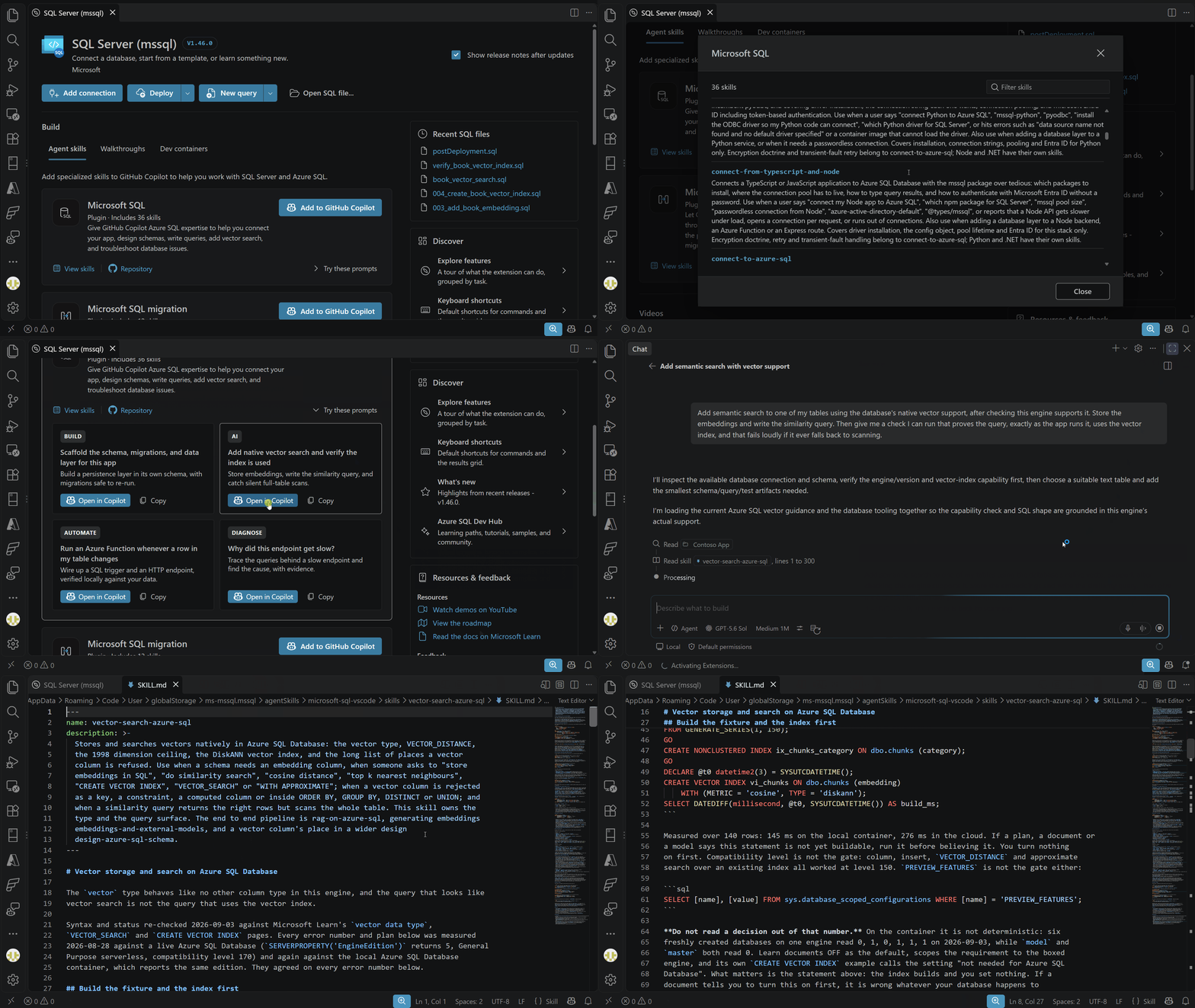
Learn more, browse other Microsoft SQL plugins, and install them in any other agent tool of your choice, including GitHub Copilot CLI, Claude, Cursor, Codex, and more at Microsoft SQL agent skills.
SQL Formatter (GA)
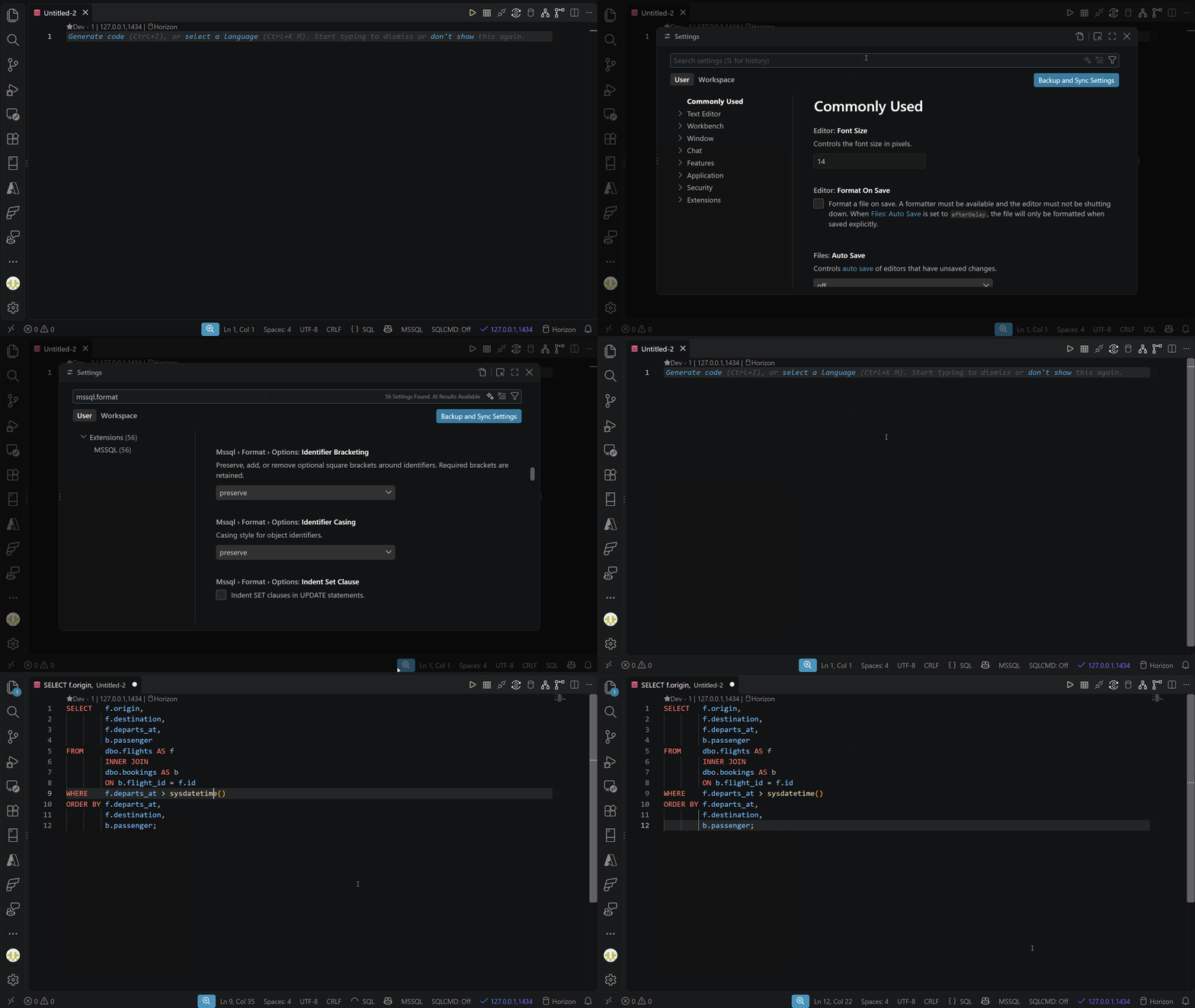
The built-in SQL Formatter is now generally available. Built on ScriptDOM, it formats a document or selection on demand or whenever you save. Run Format Document or Format Selection from the editor context menu or Command Palette. You can also use Shift+Alt+F on Windows and Linux or Shift+Option+F on macOS. This release adds more options under Mssql > Format in the Visual Studio Code Settings editor:
- Alignment: Align clause bodies with their keywords or indent them on the next line.
- Casing and identifiers: Format built-in functions and object names, and add, remove, or preserve optional square brackets.
- Statement style: Control alias syntax, comma placement and spacing, trailing
GOseparators, and semicolon terminators for blocks. - Multiline lists: Format
GROUP BY,HAVING,IN, nested functions,ORDER BY,PARTITION BY, procedure parameters, andWITH/OPTIONvalues across lines. - Joins and batches: Place joined sources and
ONclauses on new lines, and control spacing after batches and top-level statements.
For full documentation and setting defaults, see SQL formatter.
Save and reuse Object Explorer filters
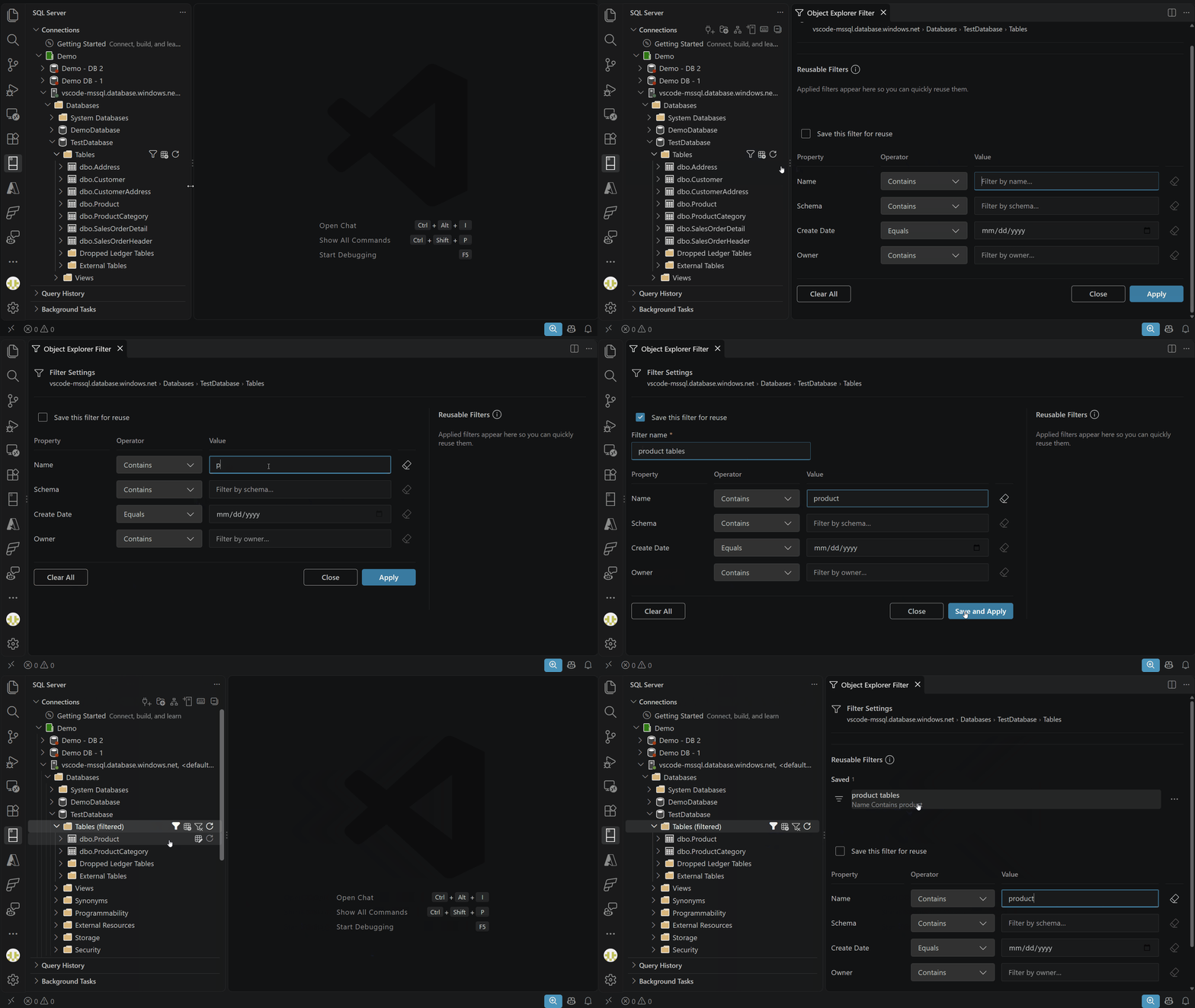
The Object Explorer Filters dialog now keeps recently applied filters and lets you save frequently used filters by name.
Data API builder improvements
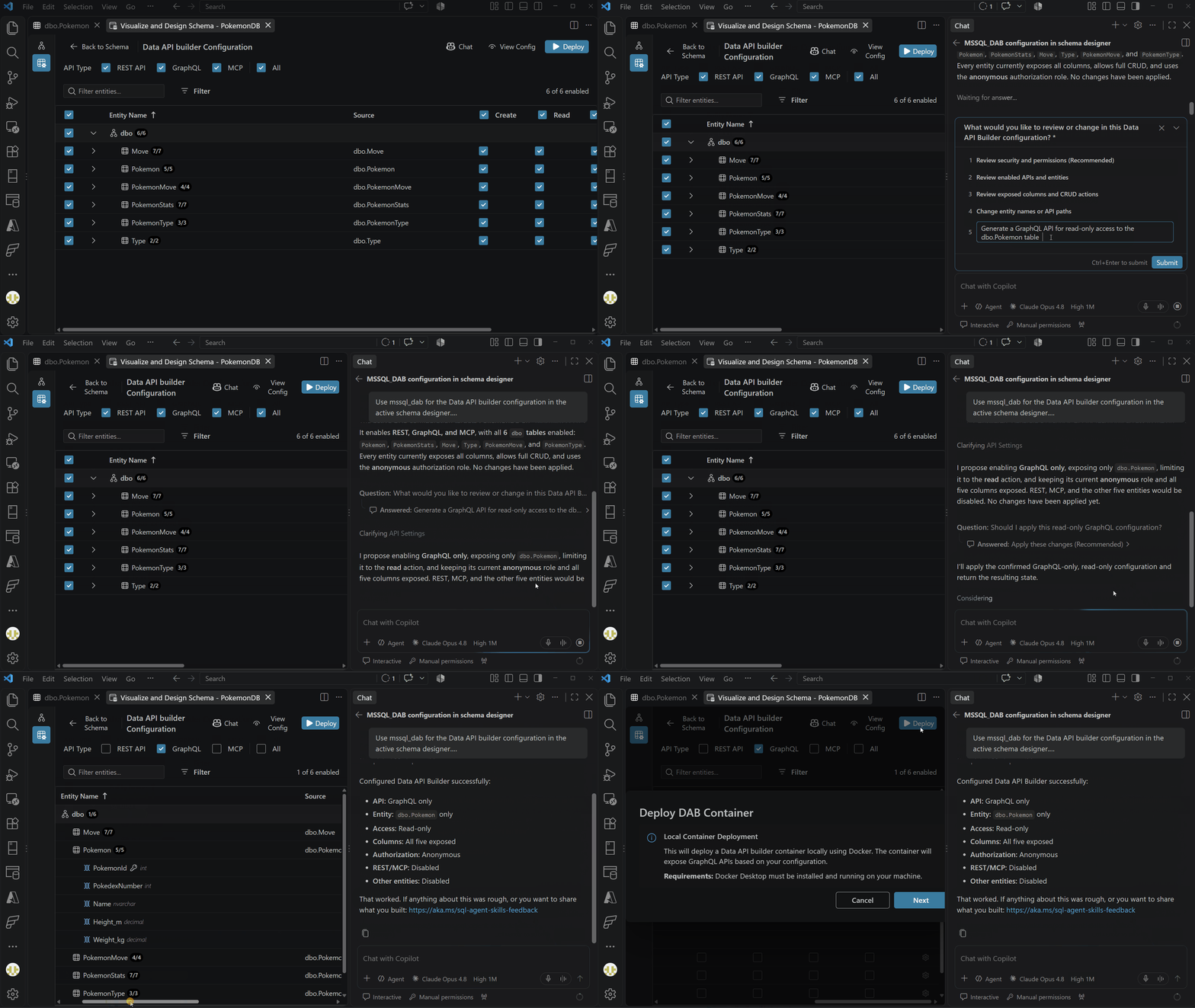
The Build Data API experience now restores each database’s saved API design and expands what you can configure:
- More database objects: Create endpoints for views and stored procedures, and assign logical keys to tables or views without a primary key.
- Finer controls: Set per-entity REST, GraphQL, and MCP exposure, plus actions and column access for anonymous and authenticated roles.
- More supported data:
vectorandjsondata types are now supported when configuring APIs. - Clearer status: Review exposure and permissions in the entity grid with accurate counts and readable labels.
Next steps
If there’s something you’d love to see in a future update, here’s how you can contribute:
- 💬 GitHub discussions – Share your ideas and suggestions to improve the extension
- ✨ New feature requests – Request missing capabilities and help shape future updates
- 🐞 Report bugs – Help us track down and fix issues to make the extension more reliable
If you’d like to learn more about the MSSQL extension, you can:
- 🎬 Watch the demos: Explore key features through our YouTube playlist
- 🤖 Watch the GitHub Copilot demos: Learn how to use GitHub Copilot to write, explain, and refactor your database schema
- 📝 Read the blog posts: Learn from use cases, walkthroughs, and product updates
- 📖 Read the documentation: Get started or go deep with our official docs
- 🗺️ Check out the roadmap: See what’s coming next, including upcoming features and improvements
Thanks for being part of the journey—happy coding! 🚀


Please, follow c# dev kit and use the files tab + solution view instead of a dedicate tab for sqlproj, it’s really unconvenient to have unsupported projects in the solution view and having to continously switch from the file explorer