

The MSSQL extension for VS Code v1.44 continues to improve the SQL development experience with features that help you work faster and customize your workflow. In this release, we’re introducing the Public Preview of Shortcuts Configuration and an Enhanced Results Grid experience. Together, these updates make it easier to personalize how you work with SQL and improve the performance and usability of query results directly inside Visual Studio Code.
What’s new in MSSQL extension for VS Code v1.44
Here’s a summary of the key features in this release:
- Shortcuts Configuration (Preview): Configure, manage, and launch common SQL commands and queries from a unified experience.
- Enhanced Results Grid Experience (Preview): A redesigned results grid with improved performance, enhanced state management, and more column customization capabilities including freezing, hiding, and showing.
Shortcuts Configuration (Preview)
The new Shortcuts Configuration experience provides a centralized way to discover, configure, and manage keyboard shortcuts across the MSSQL extension. Whether you’re executing frequently used SQL snippets or customizing editor commands, the new interface helps you tailor your workflow without manually editing settings files.
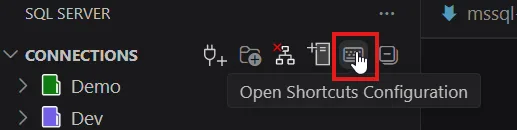
Access the feature by selecting Open Shortcuts Configuration from the MSSQL extension toolbar.
Key highlights
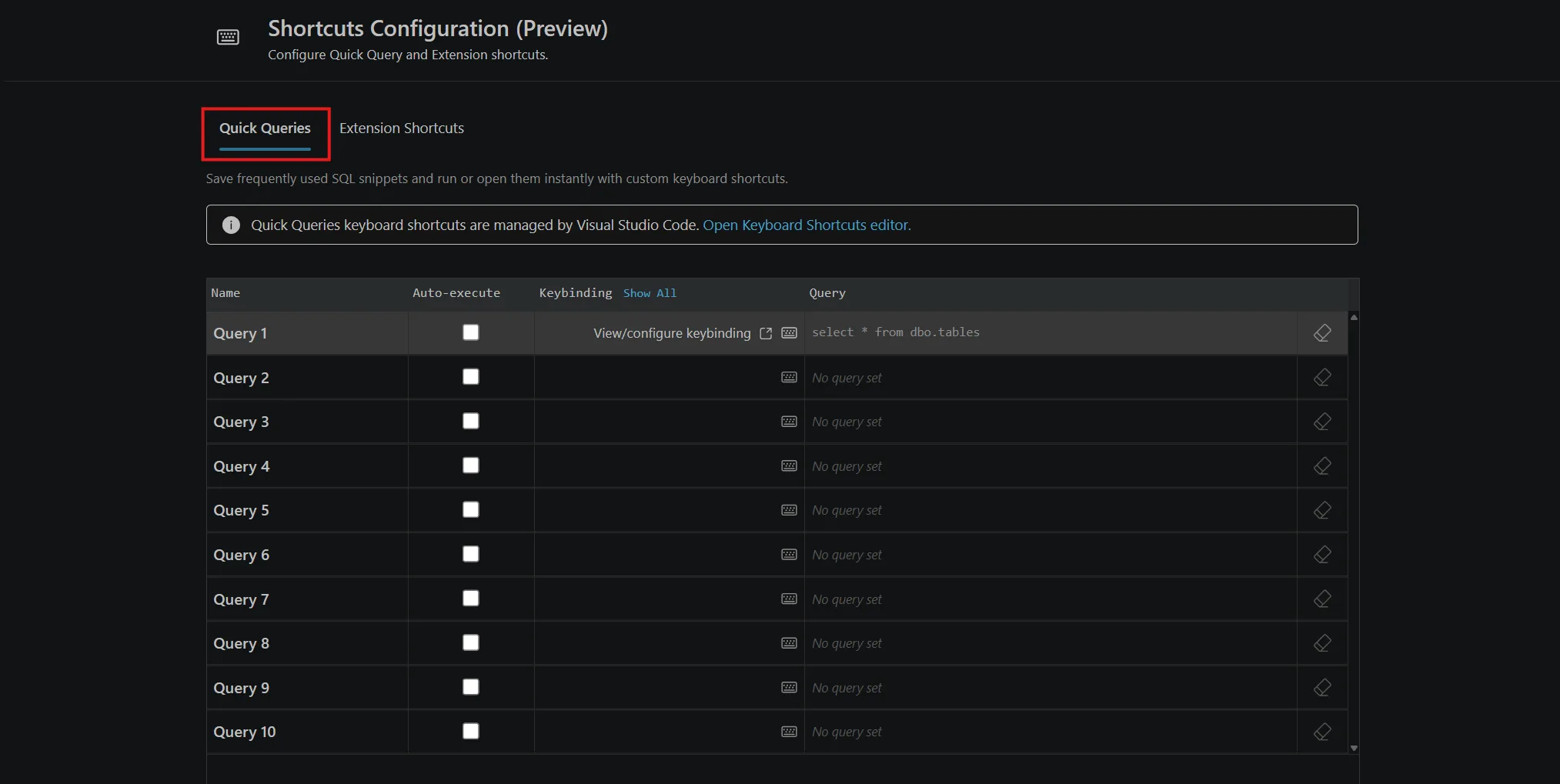
- Quick Queries: Save your most frequently used SQL snippets and bind them with customized keyboard shortcuts, reducing repetitive typing for common development tasks.
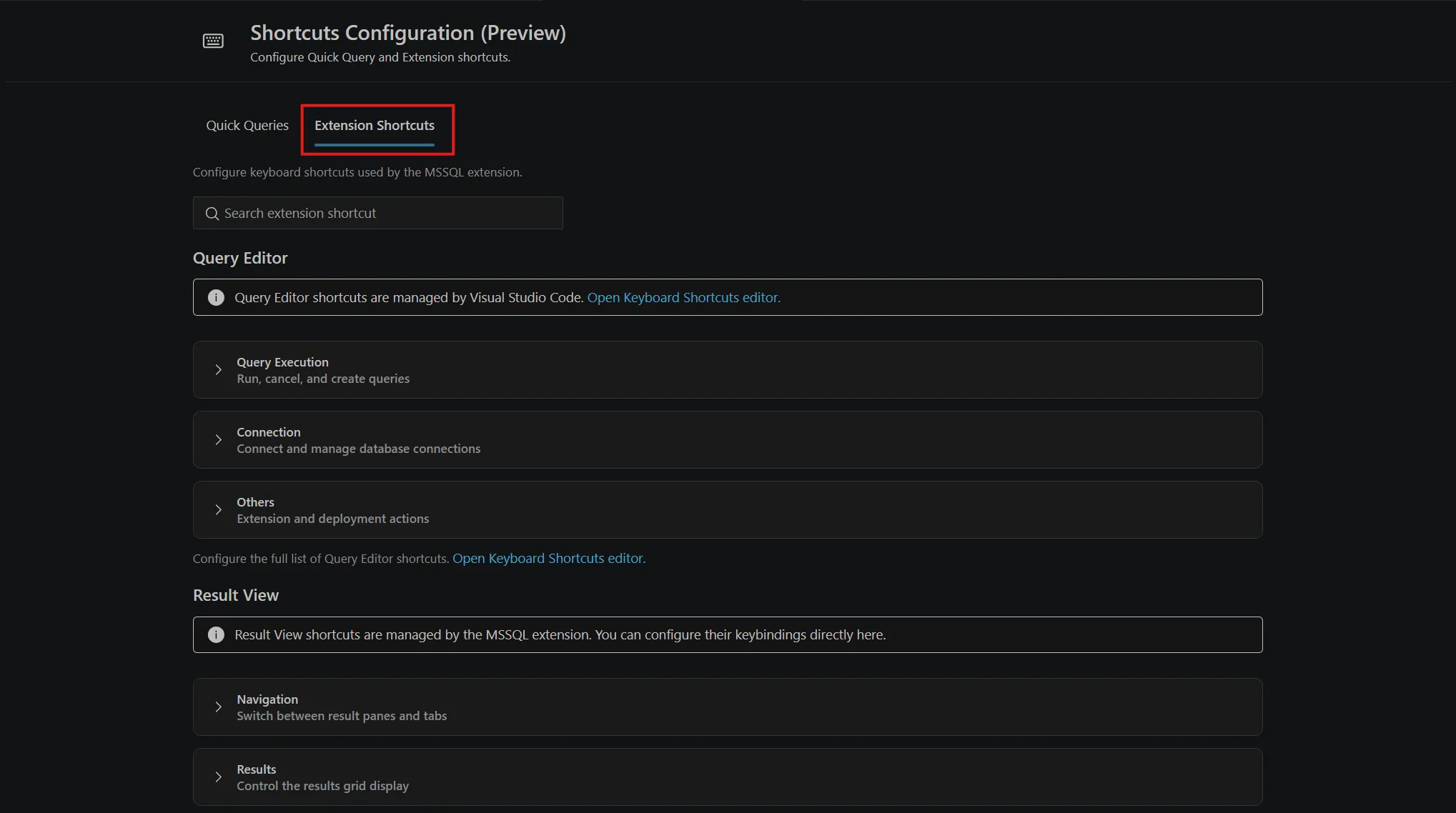
- Extension Shortcuts: View and customize the MSSQL extension’s most commonly used editor and results view keyboard shortcuts.
In the Quick Queries tab, you can configure and save reusable SQL queries, choose whether shortcuts execute them immediately or open them in the editor for review, and assign custom keyboard shortcuts using the Visual Studio Code Keyboard Shortcuts editor.
In the Extension Shortcuts tab, you can configure two types of shortcuts in the MSSQL extension:
- Query Editor: Shows a selective set of the most commonly used Visual Studio Code keybindings for MSSQL commands, organized into groups such as Query Execution, Connection, and Others.
- Result View: Shows Result view shortcuts for the query results pane, including groups such as Navigation and Results.
For full documentation, see Shortcuts Configuration
Enhanced Results Grid Experience (Preview)
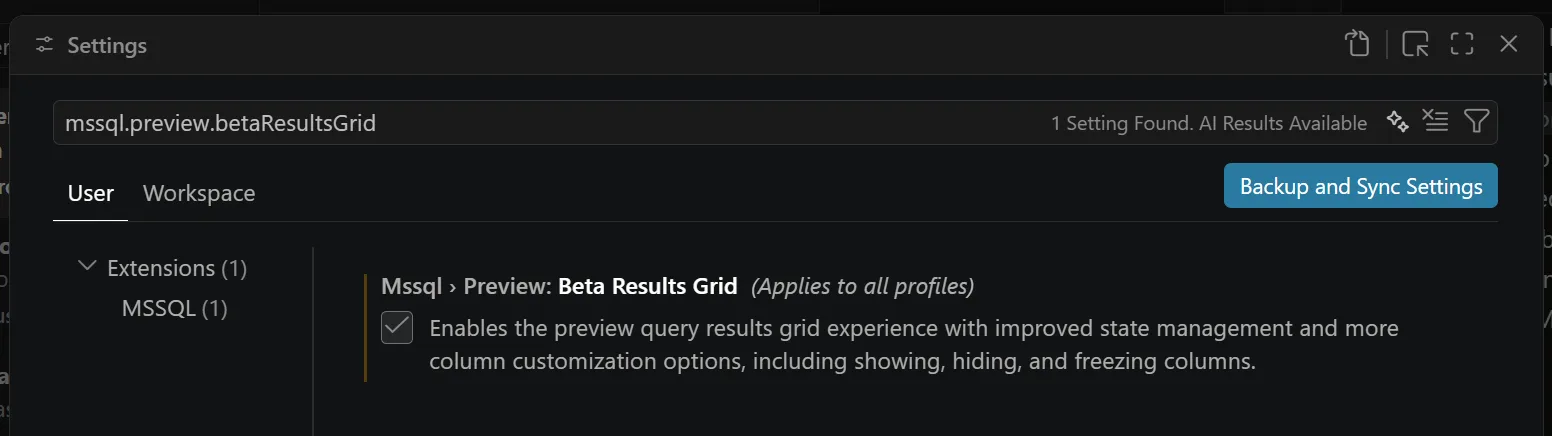
We’ve also introduced a new beta Results Grid experience designed to deliver a faster, more flexible way to work with query results.
Enable the preview by setting mssql.preview.betaResultsGrid to true in your Visual Studio Code settings.
In addition to better performance and UI improvements, you can personalize your results by freezing important columns and choosing which columns to show or hide, making it easier to focus on the data that matters most.
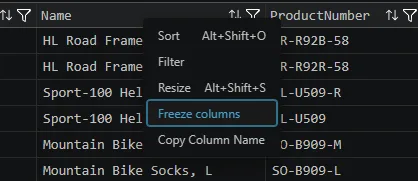
For full documentation, see Results Grid
Conclusion
The MSSQL extension for VS Code v1.44 introduces two new preview experiences that make SQL development even more productive. Shortcuts Configuration helps you streamline repetitive tasks with customizable keyboard shortcuts and reusable SQL queries, while the new Results Grid experience delivers improved performance and greater flexibility when working with query results.
If there’s something you’d love to see in a future update, here’s how you can contribute:
- 💬 GitHub discussions – Share your ideas and suggestions to improve the extension
- ✨ New feature requests – Request missing capabilities and help shape future updates
- 🐞 Report bugs – Help us track down and fix issues to make the extension more reliable
If you’d like to learn more about the MSSQL extension, you can:
- 🎬 Watch the demos: Explore key features through our YouTube playlist
- 🤖 Watch the GitHub Copilot demos: Learn how to use GitHub Copilot to write, explain, and refactor your database schema
- 📝 Read the blog posts: Learn from use cases, walkthroughs, and product updates
- 📖 Read the documentation: Get started or go deep with our official docs
- 🗺️ Check out the roadmap: See what’s coming next, including upcoming features and improvements
Thanks for being part of the journey—happy coding! 🚀


Is support for sqlproj reusing the C# Dev Kit infrastructure planned? Having a different menu instead of being able to use the commands directly on the files is definitely not a good experience. Also, in a solution containing csproj + sqlproj you will have sqlproj as not supported in the projects view
Hi! Not planned quite yet, but absolutely on the radar. If you have specific commands/actions that would be most useful to you, it would be great to hear about them at https://github.com/microsoft/vscode-mssql
What is the primary SDK/components of your csproj? Aspire, Blazor, etc
The “results grid” link (aka.ms/vscode-mssql-results-grid) doesn’t seem to work. It just takes me to a “Sorry, but we’re having trouble signing you in” error. Is it pointing to a page that’s restricted to internal MS users?
AADSTS700016: Application with identifier ‘0d6fd7c1-407c-43fb-bb77-7fc73a4333bf’ was not found in the directory …
Looks like we have a shortlink that needs to be updated – in the meantime it should be redirecting to https://learn.microsoft.com/sql/tools/visual-studio-code-extensions/mssql/mssql-extension-visual-studio-code#query-results-pane
Sorry about the broken link – I’ve updated the short link, and thanks Drew for confirming the correct one!