


Taming the Noisy Inbox: How I Used MCP to Automate Email and Teams Triage
How the Model Context Protocol (MCP) turns your AI coding assistant into a workplace productivity engine — connecting Microsoft 365 data to your terminal workflow.
The Problem We All Share
If you work in a customer-facing role, you know the feeling. You open your laptop on Monday morning and you’re staring at 150+ unread emails, dozens of Teams threads, and the creeping anxiety that something important is buried in there — a customer escalation, an exec ask, a deadline you forgot about.
You start scrolling. You context-switch between Outlook and Teams. You open threads, skim them, lose your place, start over. Thirty minutes later, you’ve read a lot of words but you’re not sure what actually needs your attention right now.
This is the inbox triage problem — and it’s universal. Whether you’re an account manager, a solutions architect, a PM, or an engineering lead, the signal-to-noise ratio in enterprise communication is brutal.
I decided to fix it.
What If Your AI Coding Assistant Could Read Your Inbox?
Here’s the insight: modern AI coding assistants like GitHub Copilot CLI and GitHub Copilot in VS Code aren’t just for writing code anymore. Thanks to the Model Context Protocol (MCP), they can connect to external data sources — including your Microsoft 365 environment.
MCP is an open standard that lets AI assistants call external tools. Think of it as a universal adapter: instead of building a custom integration for every data source, you expose capabilities through MCP servers, and any MCP-compatible client can use them.
One of those MCP servers is WorkIQ — a Microsoft 365 Copilot-powered tool that gives your AI assistant access to your emails, Teams chats, calendar, and documents. Combine WorkIQ MCP with GitHub Copilot CLI, and suddenly you can do things like:
- Show me all unanswered emails from the last week, grouped by priority
- Scan my Teams chats for any messages where I’m directly asked a question
- What customer escalations came in while I was on PTO?
All from your terminal. No browser tabs. No scrolling.
Building the Workflow: From Messy to Methodical
I started simple — a single prompt that asked WorkIQ to scan my inbox and categorize everything into three buckets:
- 🔴 Action Required — someone directly asked me to do something
- 🟠 Review Needed — decisions, deliverables, or time-sensitive info directed at me
- 🟢 Informational — CC’d, FYI threads, automated alerts
It worked. But I immediately hit two problems that turned into engineering challenges.
Challenge 1: Timeouts on Large Lookback Windows
When I asked WorkIQ to scan 3 weeks of email in a single query, it timed out. The M365 Copilot backend was processing too much data for one request.
Solution: Chunked queries with graceful fallback.
Instead of one 3-week query, the workflow automatically breaks it into three 7-day chunks, runs them sequentially, and merges the results. If a chunk times out, it retries with a simplified prompt (top 10 items, shorter format). If that also fails, it falls back to a minimal query (top 5, one-liner summaries). If all three levels fail for a chunk, it skips it and notes the gap.
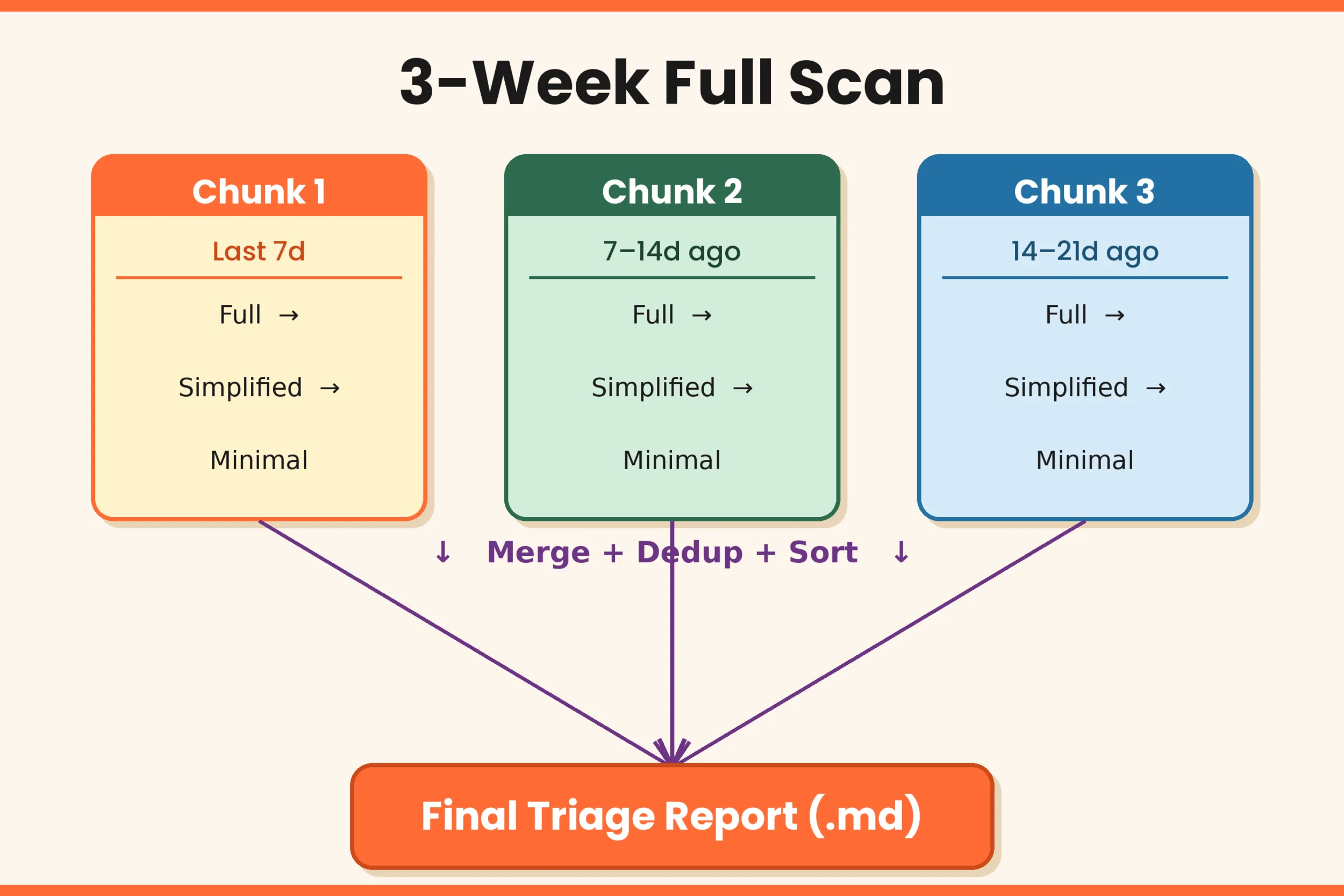
This pattern is reusable for any MCP integration where the backend has processing limits.
Challenge 2: Duplicate and Stale Items Across Runs
When you run triage daily or weekly, the same items show up repeatedly. Worse, sometimes an item that was already resolved resurfaces because the underlying chat had new activity (someone reacted, or the group chat was opened).
Solution: A rolling JSONL index with AI-assisted dedup.
Each triage run reads a persistent index file (triage-index.jsonl) that tracks every item ever surfaced — with its status (open, resolved, snoozed), when it was first and last seen, and resolution notes.
| {“id”:”email-001″,”subject”:”Architecture Review Request”,”from”:”Daniel F.”,
“status”:”open”,”first_seen”:”2026-03-16″,”last_seen”:”2026-03-17″} {“id”:”email-002″,”subject”:”FY26 Survey – Last Day”,”from”:”HR Comms”, “status”:”resolved”,”resolved_at”:”2026-03-16″,”resolution”:”Completed survey”} |
The AI agent performs semantic matching — not just string comparison — so it catches duplicates even when WorkIQ returns slightly different subject wording between runs. Resolved items are automatically excluded from future reports.
You can manage the index conversationally:
- “Mark item 3 resolved” → updates the JSONL, won’t show up next time
- “Snooze item 5 until Friday” → hides it temporarily, resurfaces on the date
The Same Pattern Works for Teams
The exact same architecture — chunked queries, fallback prompts, rolling index — works for Microsoft Teams chat triage. The only difference is the prompt template, which focuses on group chats, channels, and @mentions instead of email threads.
The workflow scans for:
- 🔴 Direct Asks — @mentioned, asked a question, assigned an action
- 🟠 Account Updates — key decisions, blockers, status changes in important threads
- 🟢 FYI — general discussion, links shared, meeting recaps
Both workflows produce clean markdown reports that get saved to a folder structure — creating a searchable archive of your communication triage over time.
Why MCP Makes This Possible (and Portable)
The key architectural decision here is MCP. Because WorkIQ exposes its capabilities through the Model Context Protocol, this workflow isn’t locked to a single AI assistant.
The same triage prompts and workflow configs work with:
- GitHub Copilot CLI — run triage from your terminal
- GitHub Copilot in VS Code — run triage from your editor
- Any MCP-compatible agent — the protocol is open
This is the real power of MCP: you build the workflow once, and it works wherever MCP is supported. The prompts, the chunking strategy, the dedup index — none of it is tied to a specific AI provider.
What I Learned
1. Prompt engineering isn’t just for chatbots
The triage prompts went through multiple iterations. Getting the categorization right (🔴 vs 🟠 vs 🟢) required explicit instructions like “Only put emails in 🔴 if I am specifically and directly asked to do something. Being CC’d does NOT count.”
2. Resilience patterns matter for MCP integrations
Timeouts, partial results, and inconsistent data are real. Build fallback chains. Chunk your queries. Don’t assume the backend will always respond in time.
3. AI-assisted dedup beats string matching
When the upstream data source returns free-text summaries (not stable IDs), semantic matching by the AI agent is more reliable than fuzzy string comparison. The AI understands that “Request for IAC Slot” and “Fwd: Request for IAC Slot – Integration Discussion” are the same thread.
4. Markdown + JSONL = surprisingly powerful
No database needed. Plain markdown reports are human-readable and git-trackable. JSONL indexes are machine-parseable and append-friendly. Together, they create a lightweight but capable state management system.
Try It Yourself
The core pattern is straightforward:
- Install an MCP-compatible AI assistant (GitHub Copilot CLI, GitHub Copilot in VS Code)
- Connect WorkIQ MCP to access your M365 data
- Create a prompt template that describes your triage criteria and output format
- Add resilience — chunking for large time windows, fallback prompts for timeouts
- Add state — a JSONL index to track items across runs and avoid duplicates
Start with email. Once that works, replicate for Teams. The architecture is the same.
What’s Next?
I’m exploring a few extensions:
- Scheduled triage — run the scan automatically every morning and have the report waiting
- Cross-channel correlation — connecting email items to related Teams threads
- Action drafting — having the AI draft reply emails or Teams responses for the 🔴 items
The inbox triage problem won’t go away. But with MCP and WorkIQ, we can turn it from a 30-minute scroll session into a 2-minute terminal command.
References
| Resource | Link |
| WorkIQ MCP — Microsoft 365 Copilot MCP server | github.com/microsoft/work-iq-mcp |
| GitHub Copilot CLI — AI-powered terminal assistant | docs.github.com/…/using-github-copilot-in-the-command-line |
| GitHub Copilot in VS Code — AI pair programmer | docs.github.com/…/using-github-copilot-in-your-ide |
| Model Context Protocol (MCP) — open standard for AI tool integration | modelcontextprotocol.io |


0 comments
Be the first to start the discussion.