


Azure DevOps or GitHub Enterprise ?
Today, in the Microsoft ecosystem, two Software Development Lifecycle management platforms coexist:
– Azure DevOps is designed from the ground up for enterprise with advanced planning features through Azure Boards, build and release automation with Azure Pipelines, and a unique offering for quality teams with Azure Test Plans…
– GitHub has evolved with the open-source ecosystem, and its operation is naturally more centered around code repositories, visible by default, and the system of proactive contributions through Forks and Pull Requests. The platform has evolved to become a robust enterprise solution while maintaining a deliberately more open approach than Azure DevOps, offering an alternative to development teams.
With more than 180 million developers on GitHub in 2025, the platform is naturally at the center of developer innovations for several years with the rapid development of GitHub Copilot.
GitHub copilot is the cornerstone of our Agentic DevOps vision. Most advanced capabilities of Copilot are exclusively on GitHub are currently not available on Azure DevOps if your code is not hosted on GitHub (except GitHub Copilot on the IDE).
What if the ideal solution was to combine the strengths of both platforms ? Host source code on GitHub to benefit from revolutionary AI capabilities, while continuing to use Azure Boards, Azure Pipelines, Azure Test Plans, and other proven Azure DevOps project management tools. This hybrid strategy, increasingly adopted by organizations, is actually the recommended trajectory for Azure DevOps users.
In this article, we guide you, step by step, to migrate your repositories from Azure DevOps to GitHub while preserving all your history, metadata, and pipelines. Thanks to the deep integration between Azure DevOps and GitHub, you’ll activate the ultimate hybrid strategy.
Why Migrate to GitHub?
GitHub is the AI Native SDLC Platform
- Copilot Coding Agent: Intelligent autonomous code generation based on project context
- Agentic Code Review: Automatic detection of potential bugs, improvement suggestions
- Copilot Chat: Contextual development assistant directly in your IDE
- Agent HQ: AI control center to manage tasks from all your agents
- Copilot Autofix: Automatic correction of detected vulnerabilities
Ecosystem and Integration
- GitHub Actions: Modern and flexible automation (CI/CD and more) with a rich marketplace
- GitHub Advanced Security: Vulnerability analysis, secret scanning, dependency review, and code quality
- Apps and Integrations Marketplace: as the world #1 platform for developers, GitHub has integrations available to connect with all tools from your software development process, and by the way: Azure DevOps.
Enterprise development teams love Azure DevOps
It’s important to note that Azure DevOps still have big assets for him:
- Azure Boards: Very complete and flexible enterprise project management system
- Azure Pipelines: Powerful a stable CI/CD automation engine (we’ll see how to maintain them later in this article)
- Azure Test Plans: Manual and automated testing with detailed tracking
- Azure Integration: Native connection with Azure services
For many organizations, the ideal strategy is to migrate source code to GitHub while keeping Azure Boards for project management. You thus have the best of both worlds: GitHub’s advanced AI for development and Azure DevOps’ robustness for project management, with integration between the two platforms allowing AI to be integrated into all stages of the software development lifecycle.
Good news: The Unified Microsoft License
Since February 2025, the Basic Azure DevOps license is now included with GitHub Enterprise Cloud (GHEC). This means users can access both platforms without additional cost, provided they connect to Azure DevOps via Microsoft EntraID. Their access level is automatically updated to “GitHub Enterprise”, eliminating additional fees for Azure DevOps. This integration greatly simplifies the adoption of a hybrid approach, allowing enterprises to benefit from the best of both worlds.
Migration Playbook
Prerequisites
Before starting the migration, make sure you have the following requirements:
- A workstation (Windows, macOS, or Linux) with network access to both GitHub and Azure DevOps
- Some organizations have network restrictions or proxies that may block access to one or the other platform
- Verify that you can access both services from your machine.
Access and Permissions
To perform the entire migration and set up the hybrid approach presented in this article, you will need:
On your Azure DevOps user account for the migration, you need:
- Administrator rights on the Azure DevOps organization (required to install GitHub Apps: Azure Pipelines and Azure Boards)
- Read access to the source repository for cloning
- An Azure DevOps Personal Access Token: For authentication during migration script generation
On GitHub:
- Repository creation rights in the organization or your personal account
- GitHub application installation rights (for Azure Pipelines and Azure Boards integrations)
- A GitHub Personal Access Token: For authentication when cloning private repositories
⚠️ Important: Administrator rights on Azure DevOps are essential to install the GitHub Apps that will allow you to maintain your Azure Pipelines and Azure Boards while having the code on GitHub.
Tools Installed
You will need to install GitHub CLI (‘gh’), a powerful command-line tool for interacting with GitHub. Installation information is available on the official page.
Once installed, add the Azure DevOps to GitHub extension (‘azdo2gh’) which facilitates the migration of Azure DevOps projects to GitHub. Install it via GitHub CLI:
gh extension install github/gh-ado2ghStep 1: Set Environment variables
Configure the necessary environment variables for authentication:
# Azure DevOps Token
$env:ADO_PAT="YOUR_AZURE_DEVOPS_PAT"
# GitHub Token
$env:GH_PAT="YOUR_GITHUB_PAT"
💡 Reminder: These tokens must have appropriate permissions (read on Azure DevOps, repository creation on GitHub).
Step 2: Install Azure Pipelines Application on GitHub
Before migrating your repositories, you need to install the Azure Pipelines application on your GitHub target organization(s). This application connects your Azure DevOps pipelines with your GitHub repositories, ensuring continuity of your CI/CD processes after migration.
Install the application from the GitHub Marketplace
⚠️ Order is crucial: Install the Azure Pipelines application first, then migrate your repositories. This ensures that the migration script can automatically reconfigure your pipelines to point to GitHub.
Step 3: Migration Script Generation
Communication and Planning
Before generating the script, prepare the ground to avoid any data loss or service interruption:
- Communicate with your teams: Notify them 1-2 weeks in advance
- Plan the migration: Prefer off-peak hours
- Identify dependencies: List integrations to reconfigure
While technically the migration boils down to a git remote change for developers, it’s essential to organize an information session. GitHub is widely used, but some team members may never have practiced it in a professional context.
📚 Resources: Microsoft Learn and GitHub Learning Pathways are full of great content to help you upskill your teams.
Azure DevOps Organization Inventory
The ado2gh extension can generates a complete migration script. Let’s start by inventorying your Azure DevOps organization using the inventory-report command
# Replace 'contoso-sdx' with your organization name
gh ado2gh inventory-report --ado-org contoso-sdx
This command will generates 4 CSV files based on your PAT rights:
- orgs.csv: List of accessible organizations
- pipelines.csv: List of pipelines
- repos.csv: List of all repositories – will be used in the next steps for migration
- team-projects.csv: List of team projects
Script Generation
The gh ado2gh generate-script command creates a complete PowerShell script with several customization parameters available:
Required parameters:
- –ado-org: Azure DevOps organization name
- –gh-org: Target GitHub organization name
Main options:
- –output [FILE].ps1: Generated file name (default: migrate.ps1)
- –lock-ado-repo: Locks the source repository as read-only
- –create-teams: Creates Maintainers and Admins teams in GitHub
- –disable-ado-repos: Disables Azure DevOps repositories after migration
- –rewire-pipelines: Reconfigures pipelines to point to GitHub
- –all: Activates all the above options
If you don’t want to migrate all repositories from a project, you can specify a targeted list. Create a CSV file containing the repositories to migrate (one per line) and use the –repo-list repos.csv option. The expected format match the repos.csv file generated during inventory step.
Complete generation example:
# Generate a script for all repositories in a project with all options
gh ado2gh generate-script `
--ado-org contoso-sdx `
--ado-team-project my-project `
--github-org contoso-sdx `
--all
Generated Script Analysis
Open the generated script in your code editor. The process integrate 6 steps:
- Prerequisites Verification – Verification of the presence of ADO_PAT and GH_PAT environment variables – Validation that tokens are correctly configured for authentication
- GitHub Teams Creation – Automatic creation of GitHub teams with IdP (Identity Provider) group synchronization – Attribution of appropriate roles (code-reviewers, admins, etc.)
- Azure DevOps Service Connections Configuration – Preparation of integration between Azure Pipelines and GitHub repositories
- Repository Migration for each repository to migrate:
- Source repository locking: Setting to read-only in Azure DevOps (lock-ado-repo)
- Migration launch: Using migrate-repo with the –queue-only option to queue
- Migration ID storage: Retrieving the identifier for later tracking
- Post-migration (for each repository) tasks once migration is complete:
- Wait for migration completion: Status checking with wait-for-migration
- Azure DevOps repository deactivation: Marking as obsolete (disable-ado-repo)
- GitHub permissions configuration: Adding teams with appropriate roles (add-team-to-repo)
- Log download: Retrieving migration logs for audit (download-logs)
- Pipeline rewiring: Changing pipeline source to GitHub (rewire-pipeline)
- Summary Report
- Counting successful and failed migrations
- Displaying final summary with total number of successes/failures
💡Information: The script uses a robust error management system. If a step fails for one repository, the process continues with the next ones instead of stopping completely.
Script Customization Before Execution
The generated script is now ready, but before executing it, take time to customize it according to your conventions and best practices:
Naming Convention Verification
- Team names: Ensure team names match your organization
- Repository names: On GitHub, the kebab-case convention (dashes between words, lowercase only) is standard
- The tool generates repositories with the same name as in Azure DevOps, prefixed by the project name
- Consider renaming them if necessary to respect GitHub conventions
💡 Tip: Use GitHub Copilot directly in your editor to modify the script and automatically apply a consistent naming convention to all your repositories!
Pre-execution Checklist
- ✅ Environment variables ADO_PAT and GH_PAT configured
- ✅ Azure Pipelines application installed on GitHub organization
- ✅ Repository names verified and adjusted if necessary
- ✅ Team names validated
- ✅ Original script backup performed
- ✅ Development teams notified of migration
Step 4: Migration Script Execution
You are now ready to execute the migration:
# Execute the migration script
.\migrate.ps1
And the magic happens!✨ Take the opportunity to grab a coffee while the script takes care of everything.
Estimated Migration Time per repository is 5 to 10 minutes on average depending on size and complexity of history. The complete organization migration time will vary depending on the number of repositories to migrate and their size
What is Preserved During Migration ?
The script migrates your source code while preserving:
- ✅ Complete commit history
- ✅ All branches
- ✅ All tags –
- ✅ Pull Request metadata (with Azure DevOps users)
User Management: “Mannequins”
Users referenced in Azure DevOps history may have different usernames on GitHub. The script then creates mannequins (placeholders) for these users. You can see these mannequins in the git history or in pull requests:
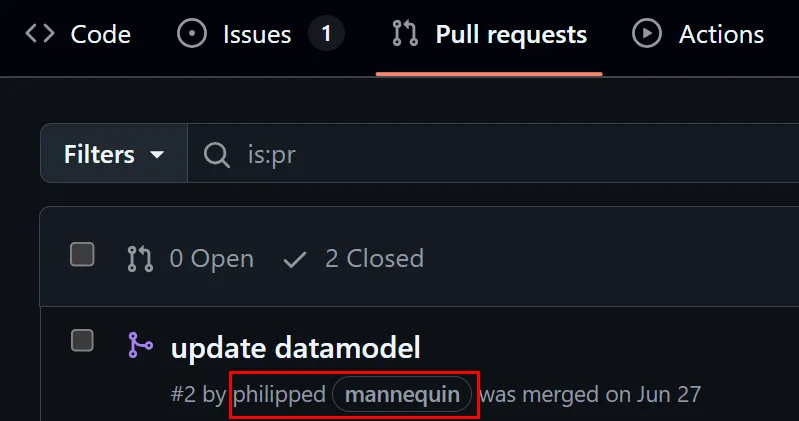
💡 Tip: Mannequins can be claimed by real GitHub users after migration through a remapping process (see Step 5).
Once the script is finished, you will see a detailed summary:
- ✅ Number of successful migrations
- ❌ Number of failed migrations
- 📋 Detailed logs for each repository In case of failure, consult the downloaded logs to diagnose the problem.
Step 5: Re-map mannequins to user accounts (Reclaim)
Once migration is complete, it’s important to manage the mannequins created for unrecognized users.
Extracting the mannequin list:
# Extract the mannequin list
gh ado2gh generate-mannequin-csv --github-org contoso-sdx
You will get a mannequins.csv file containing:
- mannequin-user: Mannequin username on GitHub
- mannequin-id: Unique mannequin ID
- target-user: Real GitHub username (to be completed)
Remapping process:
- Complete the target-user column with the real GitHub usernames
- Launch the reclaim process:
# Reclaim mannequins gh ado2gh reclaim-mannequin --github-org contoso-sdx --csv mannequins.csv - An invitation will be sent to each user
- The user must accept it for the remapping to be effective
⚠️ Important: Remapping can only be performed once per mannequin. Make sure the information is correct before launching the process.
Post-migration Communication
Inform your teams that the migration is complete and provide them with:
- New URLs of GitHub repositories
- Update procedure for their local Git configuration
- Mannequin remapping instructions (checking emails and accepting invitations)
Command lines to remap local repository to the new origin:
# From a local repository directory
cd path/to/your/repo

# Update the 'origin' remote URL
git remote set-url origin https://github.com/YOUR_ORG/YOUR_REPO.git

# Verify the new configuration
git remote -v
🔄 Good news: Developers with ongoing local branches will be able to push their changes to the new GitHub repository without problem, the Git workflow remains identical.
Step 6: Post-migration Validation and Testing
Migration complete! 🎉 Your repositories are now on GitHub, ready to exploit GitHub Copilot’s AI features while keeping your Azure DevOps tools.
Control Points
We strongly recommend that you:
- ✅ Test your workflows: Verify that development processes work correctly
- ✅ Explore new features: GitHub Copilot, Advanced Security, Projects
- ✅ Validate security: Code reviews, branch protections, CI/CD integrations
- ✅ Verify pipelines: Ensure Azure Pipelines points to GitHub
- ✅ Confirm permissions: Teams and access correctly configured
Validation Checklist
Here is a list of element to verify to ensure that your migration is complete and functional:
- ✅All repositories are accessible on GitHub
- ✅Branches and tags are present
- ✅Azure DevOps pipelines are functional
- ✅Mannequins have been reclaimed
- ✅Teams have updated their local configurations
- ✅Branch protections are configured
- ✅Documentation has been updated
Conclusion
Migration from Azure DevOps to GitHub with the GitHub ado2gh extension is a well-established process that preserves the entirety of your history while opening the door to GitHub Copilot’s AI features.
Key Takeaways
- The hybrid approach allows combining the best of both platforms
- Preparation is essential: communication, planning, permissions
- Automation simplifies: a single script to migrate multiple repositories
- Continuity is guaranteed: pipelines, history, teams preserved
- AI becomes accessible: GitHub Copilot revolutionizes productivity
Credits
A big thank you to the co-author of this playbook: Adrien Clerbois – Microsoft MVP that helped me review, refine and improve this playbook.

Going Further
- Build Session: Making Azure DevOps and Github greater than the sum of their parts
- GitHub Migration Guide on Github.com
- GitHub Copilot – Documentation
Migration your repositories to GitHub marks the beginning of a new era of productivity for your teams. Happy coding with GitHub Copilot! 🚀


The migration work, but we can’t setup the `Azure Pipelines` when the repository on github is not created.
Then, the last thing i dont like, is we lost link with PR and WorkItems on the devops side … And something is missing to link Workitems on github when using the AB#123 keyword …
Excellent and very comprehensive playbook. This clearly articulates why a GitHub-centric, AI-native SDLC combined with Azure DevOps’ enterprise-grade planning and pipelines is becoming the optimal strategy for many organizations.
The step-by-step guidance around ado2gh, pipeline rewiring, and mannequin reclamation is particularly valuable and removes much of the uncertainty teams still have around migration risk. I also appreciate the emphasis on communication, validation, and governance areas that are often underestimated in these transitions.
This is a strong reference for anyone considering a pragmatic hybrid approach rather than a disruptive “big bang” move. Well done, and thanks for sharing such a detailed and actionable...
This really answered my problem, thank you!
Great post! If you’re planning to migrate repositories from Azure DevOps to GitHub, I’ve got an automation script that can help streamline the process. Check it out here:
👉 https://github.com/leandromsft/migrate-repo-ado-to-github
It’s a GitHub Actions solution designed to make migrations faster and more reliable.
Link is dead
https://github.com/leandromsft/migrate-repo-ado-to-github
Thank you for the heads-up. The repository has been renamed. Please find the link below.
https://github.com/leandromsft/migrate-repo-from-ado-to-github
Microsoft Ignite is just wrapping up. I have two related resources related to this blog post:
- Check out the recorded session "AI-powered workflows with GitHub and Azure DevOps" that Dan Hellem and I led at Ignite: https://ignite.microsoft.com/en-US/sessions/BRK106?source=sessions. By going to that link you can watch a recording of our session and download the presentation which has several links to related resources. Check it out!
- I led a lightening talk on "Migrating to GitHub". This was not recorded but, here is a link to my presentation: https://github.com/DaveBurnisonMS/Presentations/blob/main/Migrating%20to%20GitHub%20-%20Microsoft%20Ignite%202025.pdf. That PDF has links to several resources that will help you...
It is pretty clear to everyone that MS wants everyone on Github and that ADO is ultimately going to go away with Repos being the first casualty. But honestly this makes zero sense to most people. Here's the Github UX with code and issues and projects. But only use it for code and then switch to a completely different UX to managed your issues and projects. Don't even get me started on release management which doesn't seem to have anything in Github except the Releases section.
Github also has very poor security management compared to ADO. In ADO I can...
Appreciate the thoughtful critique.
A few clarifications from my side: Microsoft isn’t sun‑setting Azure DevOps; ADO and GitHub will both continue to be maintained, and the focus is on tightening the integration so teams can compose the stack that fits them. On planning, Azure Boards and GitHub Projects take different approaches—Boards is process‑heavy and deeply integrated with pipelines; Projects is lighter and flexible. Both have strong communities, and neither is being positioned as “the only way.”
On licensing, the ADO entitlement included with GitHub Enterprise reflects the broader vision: these aren’t competing products so much as building blocks in the...